




 如何通过Docker和K8S集群实现高效调用GPU

环境查看
系统环境
# lsb_release -a
No LSB modules are available.
Distributor ID:Ubuntu
Description:Ubuntu 22.04.4 LTS
Release:22.04
Codename:jammy
# cat /etc/redhat-release
Rocky Linux release 9.3 (Blue Onyx)
软件环境
# kubectl version
Client Version: v1.30.2
Kustomize Version: v5.0.4-0.20230601165947-6ce0bf390ce3
Server Version: v1.25.16
WARNING: version difference between client (1.30) and server (1.25) exceeds the supported minor version skew of +/-1
安装Nvidia的Docker插件
在有GPU资源的主机安装,改主机作为K8S集群的Node
设置源
# curl -fsSL https://nvidia.github.io/libnvidia-container/gpgkey | sudo gpg --dearmor -o /usr/share/keyrings/nvidia-container-toolkit-keyring.gpg
  && curl -s -L https://nvidia.github.io/libnvidia-container/stable/deb/nvidia-container-toolkit.list |
    sed 's#deb https://#deb [signed-by=/usr/share/keyrings/nvidia-container-toolkit-keyring.gpg] https://#g' |
    sudo tee /etc/apt/sources.list.d/nvidia-container-toolkit.list
配置存储库以使用实验性软件包
# sed -i -e '/experimental/ s/^#//g' /etc/apt/sources.list.d/nvidia-container-toolkit.list
修改后把以下注释取消
更新
# sudo apt-get update
安装Toolkit
# sudo apt-get install -y nvidia-container-toolkit
配置Docker以使用Nvidia
# sudo nvidia-ctk runtime configure --runtime=docker
INFO[0000] Loading config from /etc/docker/daemon.json
INFO[0000] Wrote updated config to /etc/docker/daemon.json
INFO[0000] It is recommended that docker daemon be restarted.
这条命令会修改配置文件/etc/docker/daemon.json添加runtimes配置
# cat /etc/docker/daemon.json
{
    "insecure-registries": [
        "192.168.3.61"
    ],
    "registry-mirrors": [
        "https://7sl94zzz.mirror.aliyuncs.com",
        "https://hub.atomgit.com",
        "https://docker.awsl9527.cn"
    ],
    "runtimes": {
        "nvidia": {
            "args": [],
            "path": "nvidia-container-runtime"
        }
    }
重启docker
# systemctl daemon-reload
# systemctl restart docker
使用Docker调用GPU
验证配置
启动一个镜像查看GPU信息
~#   docker run --rm --runtime=nvidia --gpus all ubuntu nvidia-smi
Sat Oct 12 01:33:33 2024
+-----------------------------------------------------------------------------------------+
| NVIDIA-SMI 555.42.06              Driver Version: 555.42.06      CUDA Version: 12.5     |
|-----------------------------------------+------------------------+----------------------+
| GPU  Name                 Persistence-M | Bus-Id          Disp.A | Volatile Uncorr. ECC |
| Fan  Temp   Perf          Pwr:Usage/Cap |           Memory-Usage | GPU-Util  Compute M. |
|                                         |                        |               MIG M. |
|=========================================+========================+======================|
|   0  NVIDIA GeForce RTX 4090        Off |   00000000:01:00.0 Off |                  Off |
|  0%   53C    P2             59W /  450W |    4795MiB /  24564MiB |      0%      Default |
|                                         |                        |                  N/A |
+-----------------------------------------+------------------------+----------------------+

+-----------------------------------------------------------------------------------------+
| Processes:                                                                              |
|  GPU   GI   CI        PID   Type   Process name                              GPU Memory |
|        ID   ID                                                               Usage      |
|=========================================================================================|
|  No running processes found                                                             |
+-----------------------------------------------------------------------------------------+
该输出结果显示了 GPU 的详细信息,包括型号、温度、功率使用情况和内存使用情况等。这表明 Docker 容器成功地访问到了 NVIDIA GPU,并且 NVIDIA Container Toolkit 安装和配置成功。
4. 使用K8S集群Pod调用GPU
以下操作在K8S机器的Master节点操作
安装K8S插件
下载最新版本
$ kubectl create -f https://raw.githubusercontent.com/NVIDIA/k8s-device-plugin/v0.16.1/deployments/static/nvidia-device-plugin.yml
yml文件内容如下
# cat nvidia-device-plugin.yml
apiVersion: apps/v1
kind: DaemonSet
metadata:
  name: nvidia-device-plugin-daemonset
  namespace: kube-system
spec:
  selector:
    matchLabels:
      name: nvidia-device-plugin-ds
  updateStrategy:
    type: RollingUpdate
  template:
    metadata:
      labels:
        name: nvidia-device-plugin-ds
    spec:
      tolerations:
      - key: nvidia.com/gpu
        operator: Exists
        effect: NoSchedule
      # Mark this pod as a critical add-on; when enabled, the critical add-on
      # scheduler reserves resources for critical add-on pods so that they can
      # be rescheduled after a failure.
      # See https://kubernetes.io/docs/tasks/administer-cluster/guaranteed-scheduling-critical-addon-pods/
      priorityClassName: "system-node-critical"
      containers:
      - image: nvcr.io/nvidia/k8s-device-plugin:v0.16.1
        name: nvidia-device-plugin-ctr
        env:
          - name: FAIL_ON_INIT_ERROR
            value: "false"
        securityContext:
          allowPrivilegeEscalation: false
          capabilities:
            drop: ["ALL"]
        volumeMounts:
        - name: device-plugin
          mountPath: /var/lib/kubelet/device-plugins
      volumes:
      - name: device-plugin
        hostPath:
          path: /var/lib/kubelet/device-plugins
使用DaemonSet方式部署在每一台node服务器部署
查看Pod日志
# kubectl logs -f nvidia-device-plugin-daemonset-8bltf -n kube-system
I1012 02:15:37.171056       1 main.go:199] Starting FS watcher.
I1012 02:15:37.171239       1 main.go:206] Starting OS watcher.
I1012 02:15:37.172177       1 main.go:221] Starting Plugins.
I1012 02:15:37.172236       1 main.go:278] Loading configuration.
I1012 02:15:37.173224       1 main.go:303] Updating config with default resource matching patterns.
I1012 02:15:37.173717       1 main.go:314]
Running with config:
{
  "version": "v1",
  "flags": {
    "migStrategy": "none",
    "failOnInitError": false,
    "mpsRoot": "",
    "nvidiaDriverRoot": "/",
    "nvidiaDevRoot": "/",
    "gdsEnabled": false,
    "mofedEnabled": false,
    "useNodeFeatureAPI": null,
    "deviceDiscoveryStrategy": "auto",
    "plugin": {
      "passDeviceSpecs": false,
      "deviceListStrategy": [
        "envvar"
      ],
      "deviceIDStrategy": "uuid",
      "cdiAnnotationPrefix": "cdi.k8s.io/",
      "nvidiaCTKPath": "/usr/bin/nvidia-ctk",
      "containerDriverRoot": "/driver-root"
    }
  },
  "resources": {
    "gpus": [
      {
        "pattern": "*",
        "name": "nvidia.com/gpu"
      }
    ]
  },
  "sharing": {
    "timeSlicing": {}
  }
}
I1012 02:15:37.173760       1 main.go:317] Retrieving plugins.
E1012 02:15:37.174052       1 factory.go:87] Incompatible strategy detected auto
E1012 02:15:37.174086       1 factory.go:88] If this is a GPU node, did you configure the NVIDIA Container Toolkit?
E1012 02:15:37.174096       1 factory.go:89] You can check the prerequisites at: https://github.com/NVIDIA/k8s-device-plugin#prerequisites
E1012 02:15:37.174104       1 factory.go:90] You can learn how to set the runtime at: https://github.com/NVIDIA/k8s-device-plugin#quick-start
E1012 02:15:37.174113       1 factory.go:91] If this is not a GPU node, you should set up a toleration or nodeSelector to only deploy this plugin on GPU nodes
I1012 02:15:37.174123       1 main.go:346] No devices found. Waiting indefinitely.
驱动失败,错误提示已经清楚说明了失败原因
该Node部署GPU节点即该Node没有GPU资源
该Node有GPU资源,没有安装Docker驱动
没有GPU资源的节点肯定无法使用,但是已经有GPU资源的Node节点也会报这个错误
有GPU节点的修复方法,修改配置文件添加配置
# cat /etc/docker/daemon.json
{
    "insecure-registries": [
        "192.168.3.61"
    ],
    "registry-mirrors": [
        "https://7sl94zzz.mirror.aliyuncs.com",
        "https://hub.atomgit.com",
        "https://docker.awsl9527.cn"
    ],
    "default-runtime": "nvidia",
    "runtimes": {
        "nvidia": {
            "args": [],
            "path": "/usr/bin/nvidia-container-runtime"
        }
    }
}
关键配置是以下行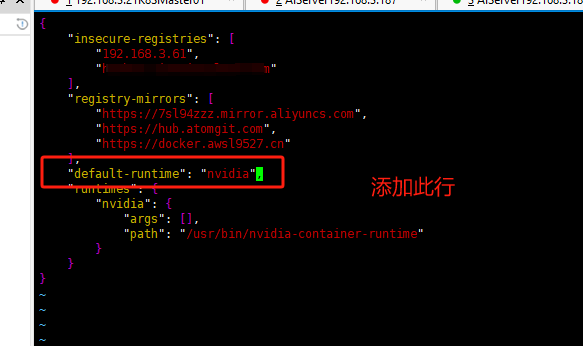
再次查看Pod日志
# kubectl logs -f nvidia-device-plugin-daemonset-mp5ql -n kube-system
I1012 02:22:00.990246       1 main.go:199] Starting FS watcher.
I1012 02:22:00.990278       1 main.go:206] Starting OS watcher.
I1012 02:22:00.990373       1 main.go:221] Starting Plugins.
I1012 02:22:00.990382       1 main.go:278] Loading configuration.
I1012 02:22:00.990692       1 main.go:303] Updating config with default resource matching patterns.
I1012 02:22:00.990776       1 main.go:314]
Running with config:
{
  "version": "v1",
  "flags": {
    "migStrategy": "none",
    "failOnInitError": false,
    "mpsRoot": "",
    "nvidiaDriverRoot": "/",
    "nvidiaDevRoot": "/",
    "gdsEnabled": false,
    "mofedEnabled": false,
    "useNodeFeatureAPI": null,
    "deviceDiscoveryStrategy": "auto",
    "plugin": {
      "passDeviceSpecs": false,
      "deviceListStrategy": [
        "envvar"
      ],
      "deviceIDStrategy": "uuid",
      "cdiAnnotationPrefix": "cdi.k8s.io/",
      "nvidiaCTKPath": "/usr/bin/nvidia-ctk",
      "containerDriverRoot": "/driver-root"
    }
  },
  "resources": {
    "gpus": [
      {
        "pattern": "*",
        "name": "nvidia.com/gpu"
      }
    ]
  },
  "sharing": {
    "timeSlicing": {}
  }
}
I1012 02:22:00.990780       1 main.go:317] Retrieving plugins.
I1012 02:22:01.010950       1 server.go:216] Starting GRPC server for 'nvidia.com/gpu'
I1012 02:22:01.011281       1 server.go:147] Starting to serve 'nvidia.com/gpu' on /var/lib/kubelet/device-plugins/nvidia-gpu.sock
I1012 02:22:01.012376       1 server.go:154] Registered device plugin for 'nvidia.com/gpu' with Kubelet
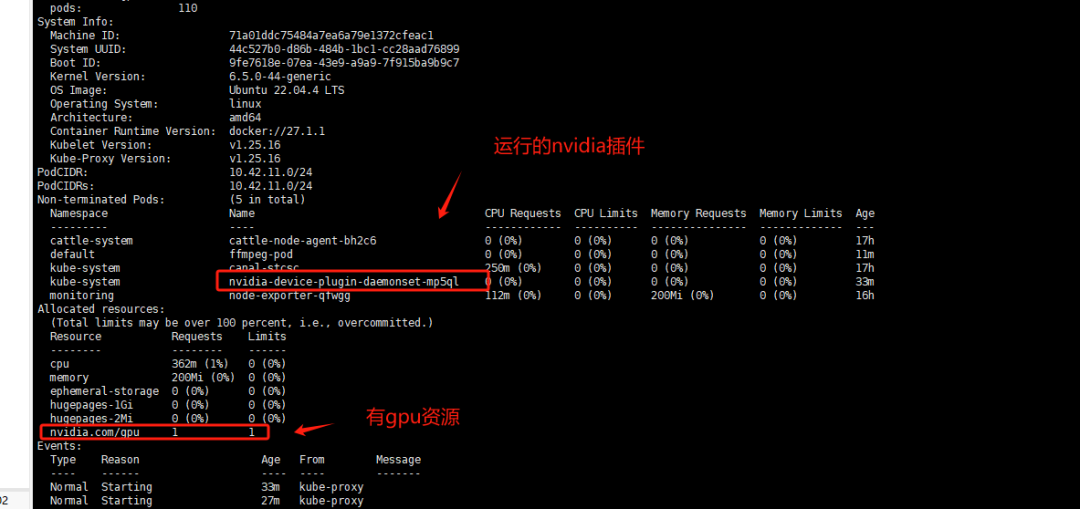
查看GPU节点信息
# kubectl describe node aiserver003087
在k8s中测试GPU资源调用
测试Pod
# cat gpu_test.yaml
apiVersion: v1
kind: Pod
metadata:
  name: ffmpeg-pod
spec:
  nodeName: aiserver003087 #指定有gpu的节点
  containers:
    - name: ffmpeg-container
      image: nightseas/ffmpeg:latest #k8s中配置阿里的私有仓库遇到一些问题,暂时用公共镜像
      command: [ "/bin/bash", "-ce", "tail -f /dev/null" ]
      resources:
        limits:
          nvidia.com/gpu: 1 # 请求分配 1个 GPU
创建Pod
# kubectl apply -f gpu_test.yaml
pod/ffmpeg-pod configured
往Pod内倒入一个视频进行转换测试
# kubectl cp test.mp4 ffmpeg-pod:/root
进入Pod
# kubectl exec -it ffmpeg-pod bash
转换测试视频
# ffmpeg -hwaccel cuvid -c:v h264_cuvid -i test.mp4 -vf scale_npp=1280:720 -vcodec h264_nvenc out.mp4
成功转换并且输出out.mp4则代表调用GPU资源成功
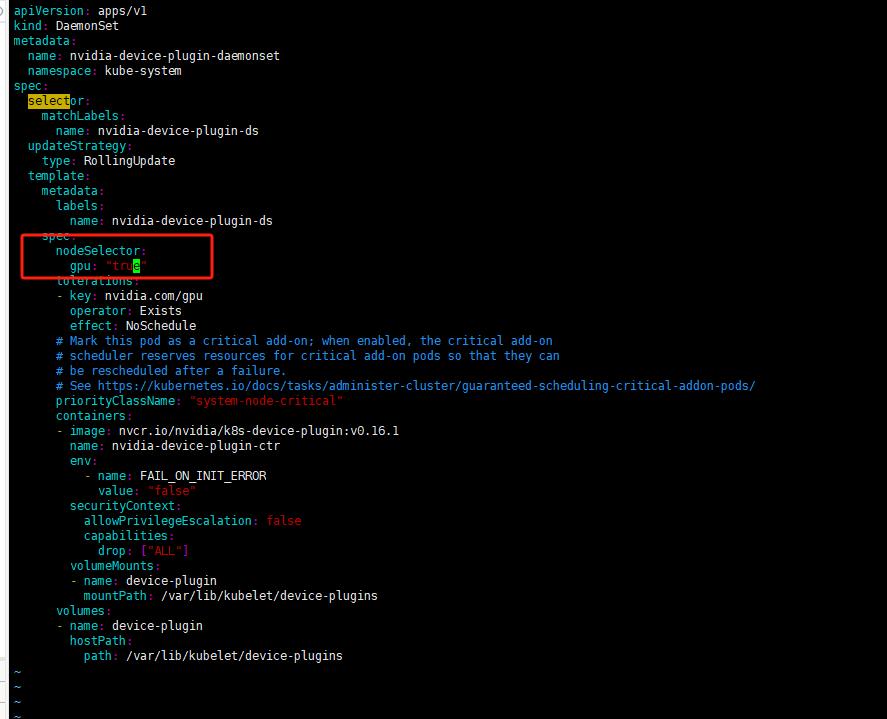
为保证DaemonSet至部署至带GPU资源的服务器可以做一个node标签选择器
设置给节点标签
# kubectl label nodes aiserver003087 gpu=true
修改DaemonSet配置文件添加标签选择保证DaemonSet至部署至带gpu=true标签的Node上
deployment配置文件修改位置是一致的
修改gpu测试Pod的yaml文件使用标签选择器
# cat gpu_test.yaml
apiVersion: v1
kind: Pod
metadata:
  name: ffmpeg-pod
spec:
  #nodeName: aiserver003087 #指定有gpu的节点
  containers:
    - name: ffmpeg-container
      image: nightseas/ffmpeg:latest #k8s中配置阿里的私有仓库遇到一些问题,暂时用公共镜像
      command: [ "/bin/bash", "-ce", "tail -f /dev/null" ]
      resources:
        limits:
          nvidia.com/gpu: 1
  nodeSelector:
    gpu: "true"
    #kubernetes.io/os: linux
注意: 标签选择器需要值需要添加双引号"true"否则apply会报错,不能把bool值作为对应的值应用至标签选择器
K8S集群会自动调用GPU资源,但是如果一个GPU设备已经被使用,再启动一个应用时可能调用到改设备导致显存溢出
可以修改配置指定GPU设备启动
指定第8块显卡启动应用,设备号从0开始计算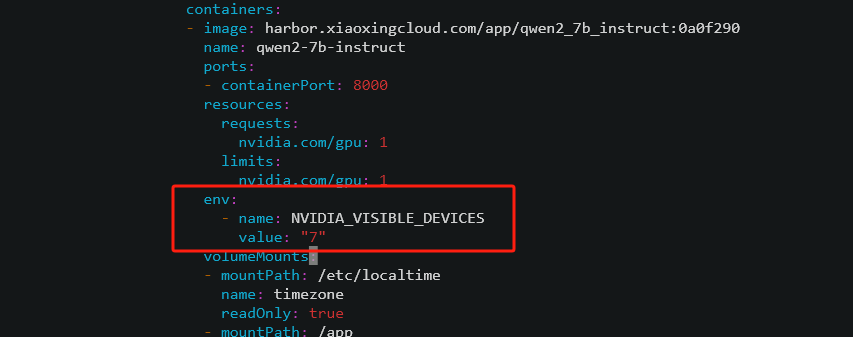
链接:https://www.cnblogs.com/minseo/p/18460107
-
gpu
+关注
关注
28文章
5110浏览量
134511 -
集群
+关注
关注
0文章
130浏览量
17603 -
命令
+关注
关注
5文章
746浏览量
23459 -
Docker
+关注
关注
0文章
526浏览量
14046
原文标题:AI时代GPU加速:如何通过Docker和K8S集群实现高效调用GPU
文章出处:【微信号:magedu-Linux,微信公众号:马哥Linux运维】欢迎添加关注!文章转载请注明出处。
发布评论请先 登录
什么是 K8S,如何使用 K8S
全面提升,阿里云Docker/Kubernetes(K8S) 日志解决方案与选型对比
全面提升,阿里云Docker/Kubernetes(K8S) 日志解决方案与选型对比
K8s 从懵圈到熟练 – 集群网络详解
k8s容器运行时演进历史
Docker不香吗为什么还要用K8s
简单说明k8s和Docker之间的关系
K8S集群服务访问失败怎么办 K8S故障处理集锦

多k8s集群环境中工作有多快
k8s是什么意思?kubeadm部署k8s集群(k8s部署)|PetaExpres
K8s多集群管理:为什么需要多集群、多集群的优势是什么

k8s云原生开发要求











 工商网监
工商网监
评论