


 如何使用双极电机创建3点轴机械臂

步骤1:原理图和组件列表

这是我们在此项目中使用的完整原理图和可用组件的概述。
包含的组件如下:
Arduino UNO
PlayStation2游戏杆
Cyber 310机械臂
超声波接近传感器HC-SR04
面包板
PlayStation2 RC直升机的振动电机和转子
EasyDriver 4.4步进电机驱动器
我们主要选择这些组件是因为它们很容易为我们使用。我们还认为,与同班同学相比,使用更大的机械臂会很有趣。尽管我们意识到了这一点,但我们的野心超出了我们的能力。
步骤2:构造操作设备
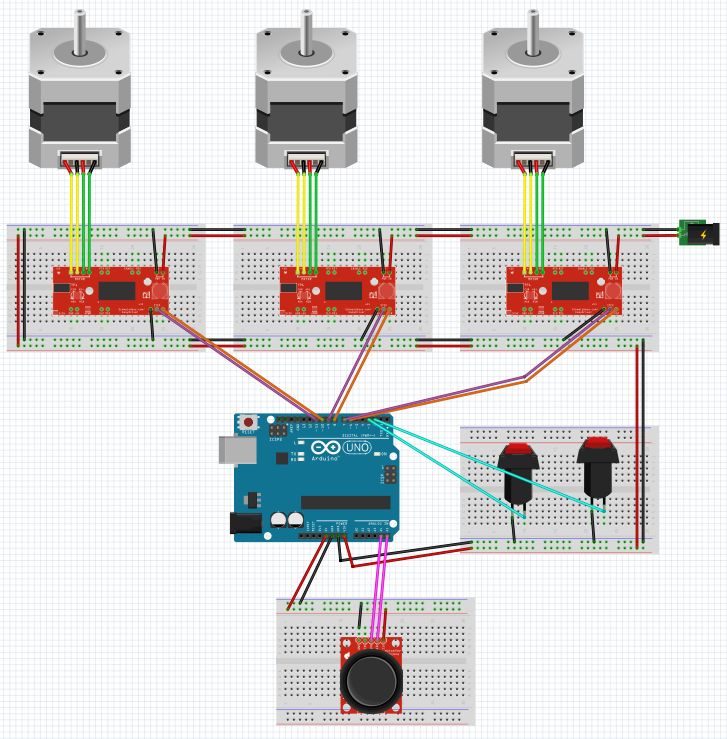
我们焊接并连接了几部分印刷品和许多电线,以便获得适当的运行电路来控制我们的机械臂。
设计本身主要基于尽管在实际施工过程中进行了一些修改,但本节上面概述的概述中没有提及。
步骤3:对其中的一些进行了实现,以实现超声传感器。
步骤3:机器人手臂的测试代码
下面包含的机械手测试代码
我们使用这段代码来测试机械臂是否在实际工作,因为我们很难对完整代码(包含在步骤6中)做出反应。该代码的某些部分已过时,因为实际设备中未使用它。
#define step_pin 6 // Pin 6 connected to Steps pin on EasyDriver
#define dir_pin 7 // Pin 7 connected to Direction pin
//#define MS1 5 // Pin 5 connected to MS1 pin
//#define MS2 4 // Pin 4 connected to MS2 pin
#define SLEEP 10 // Pin 10 connected to SLEEP pin
#define X_pin A0 // Pin A0 connected to joystick x axis
int direction; // Variable to set Rotation (CW-CCW) of the motor
int steps = 1025; // Assumes the belt clip is in the Middle
void setup() {
// pinMode(MS1, OUTPUT);
// pinMode(MS2, OUTPUT);
pinMode(dir_pin, OUTPUT);
pinMode(step_pin, OUTPUT);
pinMode(SLEEP, OUTPUT);
digitalWrite(SLEEP, HIGH); // Wake up EasyDriver
delay(5); // Wait for EasyDriver wake up
/* Configure type of Steps on EasyDriver:
// MS1 MS2
//
// LOW LOW = Full Step //
// HIGH LOW = Half Step //
// LOW HIGH = A quarter of Step //
// HIGH HIGH = An eighth of Step //
*/
// digitalWrite(MS1, LOW); // Configures to Full Steps
// digitalWrite(MS2, LOW); // Configures to Full Steps
}
void loop() {
while (analogRead(X_pin) 》= 0 && analogRead(X_pin) 《= 100) {
if (steps 》 0) {
digitalWrite(dir_pin, HIGH); // (HIGH = anti-clockwise / LOW = clockwise)
digitalWrite(step_pin, HIGH);
delay(1);
digitalWrite(step_pin, LOW);
delay(1);
steps--;
}
}
while (analogRead(X_pin) 》 100 && analogRead(X_pin) 《= 400) {
if (steps 《 512) {
digitalWrite(dir_pin, HIGH); // (HIGH = anti-clockwise / LOW = clockwise)
digitalWrite(step_pin, HIGH);
delay(1);
digitalWrite(step_pin, LOW);
delay(1);
steps++;
}
if (steps 》 512) {
digitalWrite(dir_pin, HIGH);
digitalWrite(step_pin, HIGH);
delay(1);
digitalWrite(step_pin, LOW);
delay(1);
steps--;
}
}
while (analogRead(X_pin) 》 401 && analogRead(X_pin) 《= 600) {
if (steps 《 1025) {
digitalWrite(dir_pin, HIGH);
digitalWrite(step_pin, HIGH );
delay(1);
digitalWrite(step_pin, LOW);
delay(1);
steps++;
}
if (steps 》 1025) {
digitalWrite(dir_pin, HIGH);
digitalWrite(step_pin, HIGH);
delay(1);
digitalWrite(step_pin, LOW);
delay(1);
steps--;
}
}
while (analogRead(X_pin) 》 601 && analogRead(X_pin) 《= 900) {
if (steps 《 1535) {
digitalWrite(dir_pin, HIGH);
digitalWrite(step_pin, HIGH);
delay(1);
digitalWrite(step_pin, LOW);
delay(1);
steps++;
}
if (steps 》 1535) {
digitalWrite(dir_pin, HIGH);
digitalWrite(step_pin, HIGH);
delay(1);
digitalWrite(step_pin, LOW);
delay(1);
steps--;
}
}
while (analogRead(X_pin) 》 900 && analogRead(X_pin) 《= 1024) {
if (steps 《 2050) {
digitalWrite(dir_pin, HIGH);
digitalWrite(step_pin, HIGH);
delay(1);
digitalWrite(step_pin, LOW);
delay(1);
steps++;
}
}
}
步骤4:传感器代码
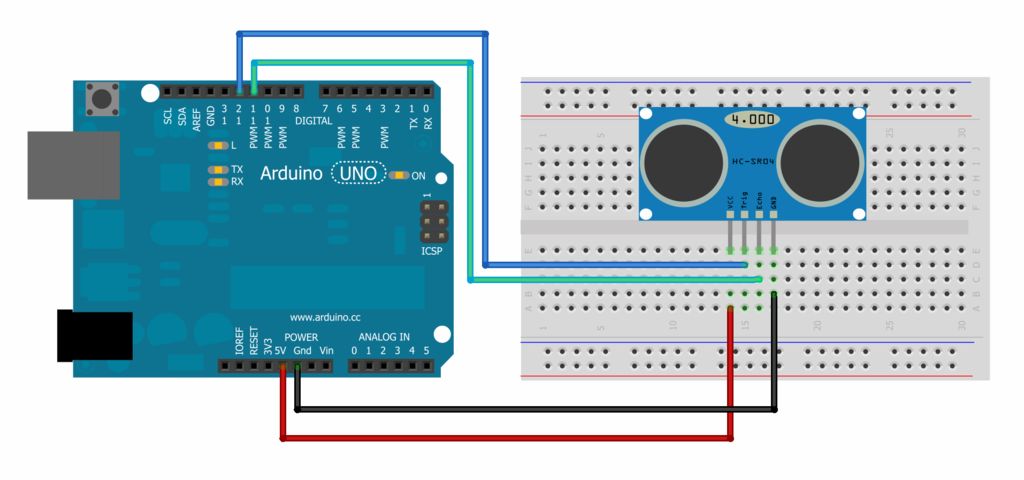
包括超声波传感器的代码
为传感器选择的代码经过构造,以便当风扇在以下范围内注册对象时风扇将运行。距回波点10至20厘米。
尽管我们同时更改了引脚和范围,但物理构造仍基于上面的示意图。
/*
HC-SR04 Ping distance sensor:
VCC to arduino 5v
GND to arduino GND
Echo to Arduino pin 8
Trig to Arduino pin 9
*/
#define echoPin 11 // Echo Pin
#define trigPin 12 // Trigger Pin
#define LEDPin 8 // Onboard LED
int maximumRange = 20; // Maximum range needed
int minimumRange = 10; // Minimum range needed
long duration, distance; // Duration used to calculate distance
void setup() {
Serial.begin (9600);
pinMode(trigPin, OUTPUT);
pinMode(echoPin, INPUT);
pinMode(LEDPin, OUTPUT); // Use LED indicator (if required)
}
void loop() {
/* The following trigPin/echoPin cycle is used to determine the
distance of the nearest object by bouncing soundwaves off of it. */
digitalWrite(trigPin, LOW);
delayMicroseconds(2);
digitalWrite(trigPin, HIGH);
delayMicroseconds(10);
digitalWrite(trigPin, LOW);
duration = pulseIn(echoPin, HIGH);
//Calculate the distance (in cm) based on the speed of sound.
distance = duration/58.2;
if (distance 》= maximumRange || distance 《= minimumRange){
/* Send a negative number to computer and Turn LED ON
to indicate “out of range” */
Serial.println(“fuckboy”);
digitalWrite(LEDPin, LOW);
}
else {
/* Send the distance to the computer using Serial protocol, and
turn LED OFF to indicate successful reading. */
Serial.println(distance);
digitalWrite(LEDPin, HIGH);
}
//Delay 50ms before next reading.
delay(50); }
步骤5:一点点视频(和麻烦)
上面的精选视频显示了我们最大的问题之一。
我们根本没有足够的视频电压功率来运行机械臂本身。机器肯定在接收信号,但是它很小,甚至不能转动旋钮来驱动手臂的轴点。
主要问题集中在为机器人提供正确的电压。电机,由于最大输入功率之间的差异,您可以放心地将其输入到Arduino和使实际电机本身正常运行所需的功率中。
步骤6:完整的主控制代码
下面包含了机械手臂的完整代码。
我们使用的代码存在一些问题,但是由于我们在电压功率方面也存在一些问题,如步骤5所述,我们很难对所有这些进行分类。应该注意的是,此部分代码不包含传感器的代码。
#ifndef _stepLib_h_
#define _stepLib_h_
#include “Arduino.h”
// define our stepper class
class stepMotor {
public:
stepMotor(byte stepPin, byte dirPin); // our stepper object with variables stepPin and dirPin
void step(unsigned int stepFreq); // our stepping function which takes as an input our stepping frequency
private:
unsigned long _time; // current time
unsigned long _lastStepTime; // time at which we last stepped
unsigned long _stepPeriod; // time between a half period - this is the same as our delay(X) of part 1
byte _stepPin;
byte _dirPin;
boolean _stepCycle; // defines if we are on the HIGH or LOW side of our step cycle
};
#endif
#include “Arduino.h”
#include “stepLib.h”
// used for declaring our motor and initializing it
stepMotor::stepMotor(byte stepPin, byte dirPin) {
_stepPin = stepPin;
_dirPin = dirPin;
// define our digital pins as output
pinMode(_stepPin, OUTPUT);
pinMode(_dirPin, OUTPUT);
// initialize our digital pins to LOW
digitalWrite(_stepPin, LOW);
digitalWrite(_dirPin, LOW);
_stepCycle = false; // this keeps track of which end of the step cycle we are on: high or low
}
// function responsible for driving our digital pins high/low at the proper frequency
// input is the stepping frequency
void stepMotor::step(unsigned int stepFreq) {
_time = micros(); // get the current time
_stepPeriod = 1000000 / stepFreq; // get our step period (in micro-seconds) from the user given step frequency; we lose a bit of accuracy here since we‘ve defined _stepPeriod as an unsigned long instead of a float, but that’s ok.。.
// if the proper amount of time has passed, let‘s go ahead and proceed to the next half of our step cycle
if (_time 》= _lastStepTime + _stepPeriod) {
digitalWrite(_stepPin, _stepCycle == true); // a compact way of writing either HIGH/LOW to our step pin based on where we are on our step cycle
_stepCycle = !_stepCycle; // this simply flips our Boolean
_lastStepTime = _time; // update the time we last stepped
}
}
#include “stepLib.h”
// define a constant value named stepPin and assign the value 8 to it - this value will not change during our code
// this assumes digital pin 8 of your Arduino is attached to the step input of your driver
#define stepPin 9
// define a constant value named dirPin and assign the value 8 to it - this value will not change during our code
// this assumes digital pin 9 of your Arduino is attached to the step input of your driver
#define dirPin 8
// instantiate a new object in our stepMotor library named slider
// we are essentially declaring that we want to add a stepper motor named slider that has our defined stepPin and dirPin
stepMotor slider(stepPin, dirPin);
// setup() loop, the Arduino only runs through this once
void setup() {
}
// loop() loop, the Arduino continuously cycles through this as fast as it can
void loop() {
slider.step(50); // step our motor at a given frequency (Hz)
}
#include “stepLib.h”
// define our step pins
# define sliderStep 9
# define panStep 11
# define tiltStep 7
// define our direction pins
# define sliderDir 8
# define panDir 10
# define tiltDir 6
// instantiate a new object in our stepMotor library named slider
// we are essentially declaring that we want to add a stepper motor named slider that has our defined stepPin and dirPin
stepMotor slider(sliderStep, sliderDir);
stepMotor pan(panStep, panDir);
stepMotor tilt(tiltStep, tiltDir);
// setup() loop, the Arduino only runs through this once
void setup() {
}
// loop() loop, the Arduino continuously cycles through this as fast as it can
void loop() {
slider.step(50); // step our motor at a given frequency (Hz)
pan.step(10); // step our motor at a given frequency (Hz)
tilt.step(100); // step our motor at a given frequency (Hz)
}
#ifndef _stepLib_h_
#define _stepLib_h_
#include “Arduino.h”
// define our stepper class
class stepMotor {
public:
stepMotor(byte stepPin, byte dirPin); // our stepper object with variables stepPin and dirPin
void step(unsigned int stepFreq); // our stepping function which takes as an input our stepping frequency
void setDir(boolean dir); // function that allows us to set our direction of rotation
private:
unsigned long _time; // current time
unsigned long _lastStepTime; // time at which we last stepped
unsigned long _stepPeriod; // time between a half period - this is the same as our delay(X) of part 1
byte _stepPin;
byte _dirPin;
boolean _stepCycle; // defines if we are on the HIGH or LOW side of our step cycle
};
#endif
#include “Arduino.h”
#include “stepLib.h”
// used for declaring our motor and initializing it
stepMotor::stepMotor(byte stepPin, byte dirPin) {
_stepPin = stepPin;
_dirPin = dirPin;
// define our digital pins as output
pinMode(_stepPin, OUTPUT);
pinMode(_dirPin, OUTPUT);
// initialize our digital pins to LOW
digitalWrite(_stepPin, LOW);
digitalWrite(_dirPin, LOW);
_stepCycle = false; // this keeps track of which end of the step cycle we are on: high or low
}
// function responsible for driving our digital pins high/low at the proper frequency
// input is the stepping frequency
void stepMotor::step(unsigned int stepFreq) {
_time = micros(); // get the current time
_stepPeriod = 1000000 / stepFreq; // get our step period (in micro-seconds) from the user given step frequency; we lose a bit of accuracy here since we’ve defined _stepPeriod as an unsigned long instead of a float, but that‘s ok.。.
// if the proper amount of time has passed, let’s go ahead and proceed to the next half of our step cycle
if (_time 》= _lastStepTime + _stepPeriod) {
digitalWrite(_stepPin, _stepCycle == true); // a compact way of writing either HIGH/LOW to our step pin based on where we are on our step cycle
_stepCycle = !_stepCycle; // this simply flips our Boolean
_lastStepTime = _time; // update the time we last stepped
}
}
// given a boolean user input, set our direction of travel to that input
void stepMotor::setDir(boolean dir) {
digitalWrite(_dirPin, dir);
}
#include “stepLib.h”
// define our step pins
# define sliderStep 9
# define panStep 11
# define tiltStep 7
// define our direction pins
# define sliderDir 8
# define panDir 10
# define tiltDir 6
// define the pins on which we‘ve put our N.O. buttons
#define button1 2
#define button2 3
// our motor step frequencies
int sliderFreq = 300;
int panFreq = 10;
int tiltFreq = 100;
// instantiate a new object in our stepMotor library named slider
// we are essentially declaring that we want to add a stepper motor named slider that has our defined stepPin and dirPin
stepMotor slider(sliderStep, sliderDir);
stepMotor pan(panStep, panDir);
stepMotor tilt(tiltStep, tiltDir);
// setup() loop, the Arduino only runs through this once
void setup() {
// define our button pins as input pullup type - see http://arduino.cc/en/Tutorial/DigitalPins#.Uyphr4WN7q4
pinMode(button1, INPUT_PULLUP);
pinMode(button2, INPUT_PULLUP);
}
// loop() loop, the Arduino continuously cycles through this as fast as it can
void loop() {
if (digitalRead(button1) == LOW && digitalRead(button2) == HIGH) { // if button1 is pressed and button2 is not pressed
slider.setDir(true);
pan.setDir(true);
tilt.setDir(true);
} else if (digitalRead(button1) == HIGH && digitalRead(button2) == LOW) { // if btton1 is not pressed and button2 is pressed
slider.setDir(false);
pan.setDir(false);
tilt.setDir(false);
}
if (digitalRead(button1) == LOW || digitalRead(button2) == LOW) { // if either button is pressed
slider.step(sliderFreq); // step our motor at a given frequency (Hz)
pan.step(panFreq); // step our motor at a given frequency (Hz)
tilt.step(tiltFreq); // step our motor at a given frequency (Hz)
}
if (digitalRead(button1) == LOW && digitalRead(button2) == LOW) { // if both buttons are pressed together
sliderFreq += 10;
panFreq += 10;
tiltFreq += 10;
delay(10); // delay just a short while otherwise the double button presses causes our frequency to increase too quickly (we need to allow for the user to release the buttons)
}
}
#include “stepLib.h”
// define our step pins
# define sliderStep 9
# define panStep 11
# define tiltStep 7
// define our direction pins
# define sliderDir 8
# define panDir 10
# define tiltDir 6
// define the pins on which we’ve put our N.O. buttons
#define button1 2
#define button2 3
// define our joystick pins; NOTE we are using analog pins, not digital
#define LRjoystickPin 27 // left-right joystick
#define UDjoystickPin 28 // up-down joystick
// our motor step frequencies
int sliderFreq = 50;
int panFreq = 300;
int tiltFreq = 100;
// other variables
byte deadband = 50; // size of deadband, from joystick neutral position, in which we assume we are reading 0
unsigned int LRjoyValue = 0;
unsigned int UDjoyValue = 0;
// instantiate a new object in our stepMotor library named slider
// we are essentially declaring that we want to add a stepper motor named slider that has our defined stepPin and dirPin
stepMotor slider(sliderStep, sliderDir);
stepMotor pan(panStep, panDir);
stepMotor tilt(tiltStep, tiltDir);
// setup() loop, the Arduino only runs through this once
void setup() {
// define our button pins as input pullup type - see http://arduino.cc/en/Tutorial/DigitalPins#.Uyphr4WN7q4
pinMode(button1, INPUT_PULLUP);
pinMode(button2, INPUT_PULLUP);
pinMode(LRjoystickPin, INPUT);
pinMode(UDjoystickPin, INPUT);
}
// loop() loop, the Arduino continuously cycles through this as fast as it can
void loop() {
// read our joystick values and store them
LRjoyValue = analogRead(LRjoystickPin); // acts just like digitalRead, but for analog pins
UDjoyValue = analogRead(UDjoystickPin); // acts just like digitalRead, but for analog pins
// control our pan with the LR joystick
if (LRjoyValue 》 512+ deadband) { // joystick is outside of deadband, move right
pan.setDir(true);
pan.step(panFreq);
} else if (LRjoyValue 《 512- deadband) { // joystick is outside of deadband, move left
pan.setDir(false);
pan.step(panFreq);
}
// control our tilt with the UD joystick
if (UDjoyValue 》 512 + deadband) { // joystick is outside of deadband, move up
tilt.setDir(true);
tilt.step(panFreq);
} else if (UDjoyValue 《 512 - deadband) { // joystick is outside of deadband, move down
tilt.setDir(false);
tilt.step(panFreq);
}
// control our slider stepper with the two buttons, just like we did previously
if (digitalRead(button1) == LOW && digitalRead(button2) == HIGH) { // if button1 is pressed and button2 is not pressed
slider.setDir(true);
} else if (digitalRead(button1) == HIGH && digitalRead(button2) == LOW) { // if btton1 is not pressed and button2 is pressed
slider.setDir(false);
}
if (digitalRead(button1) == LOW || digitalRead(button2) == LOW) { // if either button is pressed
slider.step(sliderFreq); // step our motor at a given frequency (Hz)
}
}
-
电机
+关注
关注
145文章
9714浏览量
154912 -
机械臂
+关注
关注
14文章
602浏览量
26195
发布评论请先 登录
轴向磁通电机表贴式 PMSM(隐极)与内置式 PMSM(凸极)对比,电机中D轴与Q轴的关系及不同工况下的运行特性
TMCM-3212:3 轴 ×3A×256 微步,双斜坡运动更平滑

机器人主控核心板米尔RK3576 + ROS2,NPU加速实现目标跟随与机械臂抓取
告别围栏时代!激光雷达让机械臂产线“智能守卫”效率飙升
3C 电子 / 汽车 / 物流与新零售:协作机械臂的三大行业落地范式
传统测试设备的局限与协作机械臂的破局
TMC5041:单芯片双轴步进电机驱控方案,赋能精密静音运动控制

协作机械臂产品介绍
无位置传感器控制的双电机驱动系统性能研究
极海G32R501工业六轴机械臂参考方案释放工业4.0产业价值
GZCOM-NET:为机械臂测试带来高效无线解决方案!

电机为什么会产生轴电流?
大象机器人携手进迭时空推出 RISC-V 全栈开源六轴机械臂产品




评论