


 绞车的制作教程

步骤1:零件

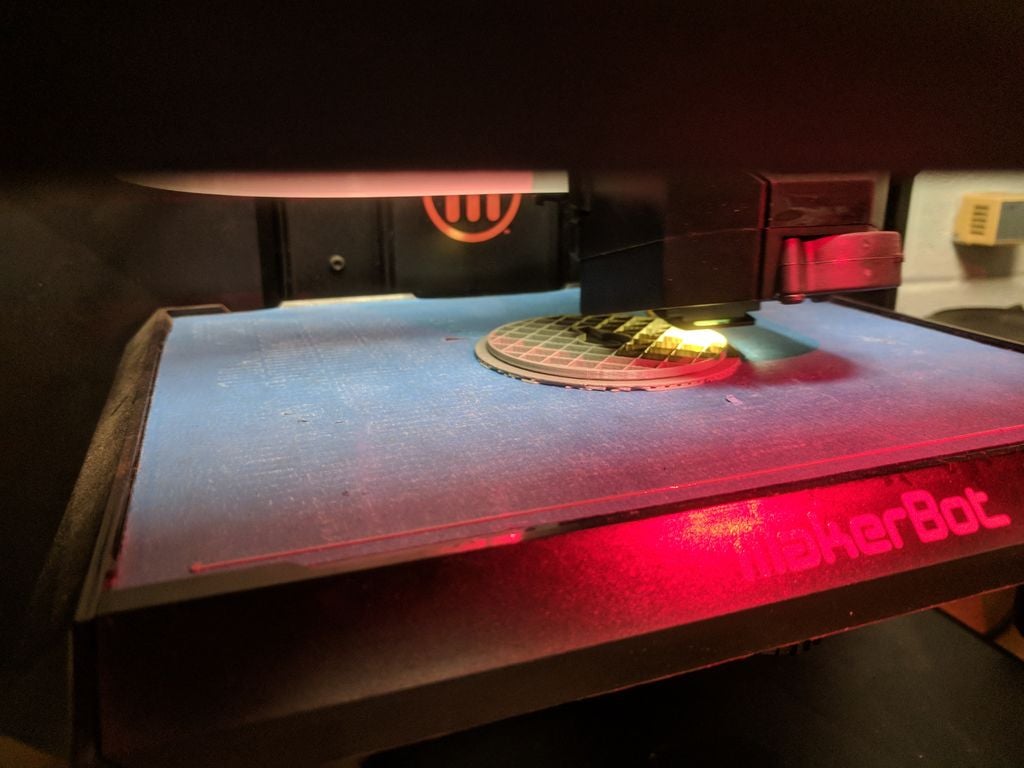


要复制此内容,您需要收集一些部分。我开始为这个项目采购电机,并且能够在eBay上找到两个Jazzy牌轮椅电机。我用于这个项目的其他部分是:
()2 Arduino Uno板
(1)SyRen10电机驱动器
(1)24伏电源
(1)5伏电源
10k欧姆电阻器
瞬时按钮
3d印刷材料
制造材料 - 用于底盘,螺钉,螺栓等的钢材
第2步:制造


我做的第一步是测试电机并确保它能正常工作。我测试了接线,并找出了哪些电线连接到电磁制动器以及哪些电线连接到电机。通过向制动器运行24伏电压,它们将释放并允许电动机自由转动。
我开始为3英寸电缆卷筒打印三维部件,电缆卷筒位于电机轴上。我用钢板切割了两个5英寸的圆盘,并在钻孔后将它们安装在两侧。 3d打印的鼓。我焊接了一个底盘,用一个1英寸的箱形钢管将电机拧紧。装配好电缆卷筒并将绞盘安装到底盘后,我准备从硬件上移开。
第3步:软件


编码经过多次测试迭代,找出最佳方法无线控制。一个版本有一个旋钮控制速度和方向与GO按钮。这非常方便动态调整,但不可重复。
代码的最终版本设计可编程根据命令执行的提示。对于这个版本,只有两个提示可供选择,这些提示在Arduino软件中编程。那些在他们的工具包中有超过3个按钮的人可以轻松扩展功能。选择提示加载将信息输入当前提示,然后按住GO按钮命令电机移动。释放按钮自动y停止电机,作为一种死人开关。最后,作为一种紧急停止,通过翻转电源板上的开关或从墙上拔下电源来切断电机电源,将使制动器停止并停止电机。
我的发射器代码嵌入在下面。
/* Transmitter Code
* Code to store a cue and transmit it with a RF24L01+ to a receiver
* Credit to Mark Hughes for sharing his remote control project that
* helped me understand and debug my nRF24L01 setup
*
* This is the code for the transmitter portion for my winch project.
* It consists of 2 buttons, each with cue information, and a third button
* which is the “GO” button. Pressing and holding the button transmits to
* the receiver the information for the motor controller.
*
* Hook Up from nRF24L01
* Gnd to GND
* VCC to VCC
* CE to Digital 9
* CSN to Digital 10
* SCK to Digital 13
* MOSI to Digital 11
* MISO to Digital 12
* IRQ to Digital 8
*/
#include SPI.h
#include RF24.h
// Radio Configuration
RF24 radio(9,10);
byte addresses[][6] = {“1Node”,“2Node”};
bool radioNumber=1;
bool role = 1; //Control transmit 1/receive 0
//hardware attachments
const int GoButton = 4; //hold button to run loaded cue
const int Cue1 = 3; //press button to load cue
const int Cue2 = 2; //press button to load cue
const int ledPin = LED_BUILTIN; //LED flashes for debug purposes
//variables
int GoButtonState = 0;
int Cue1State = 0;
int Cue2State = 0;
int MotorSpeed = 0;
int STOP = 0; //for deadman switch. Constant broadcast a 0 speed to winch for safety
void setup() {
// put your setup code here, to run once:
pinMode (ledPin, OUTPUT);
pinMode (GoButton, INPUT);
pinMode (Cue1, INPUT);
pinMode (Cue2, INPUT);
Serial.begin(9600); // Get ready to send data back for debugging purposes
radio.begin(); // Get the transmitter ready
radio.setPALevel(RF24_PA_LOW); // Set the power to low
radio.openWritingPipe(addresses[1]); // Where we send data out
radio.openReadingPipe(1,addresses[0]);// Where we receive data back
}
void loop() {
// put your main code here, to run repeatedly:
GoButtonState = digitalRead(GoButton);
Cue1State = digitalRead(Cue1);
Cue2State = digitalRead(Cue2);
// Serial.print(ForeAft_Output);
radio.stopListening(); // Stop listening and begin transmitting
delay(50); // make delay longer for debugging
while (digitalRead(GoButton) == HIGH) {
SendMotorSignal(); //subroutine for broadcast
}
if (Cue1State == HIGH) {
MotorSpeed = -127; //speed for Cue1. Input can be from -127 to 127
digitalWrite(ledPin,HIGH); //LED flashing is helpful for debug
delay(100);
digitalWrite(ledPin, LOW);
delay(200);
}
if (Cue2State == HIGH) {
MotorSpeed = 127; //speed for Cue2. Input can be from -127 to 127
digitalWrite(ledPin, HIGH); //LED flashing is helpful for debug
delay(200);
digitalWrite(ledPin, LOW);
delay(100);
}
else {
digitalWrite(ledPin, LOW);
radio.stopListening(); // Stop listening and begin transmitting
delay(50); // make delay longer for debugging
if(radio.write(&STOP, sizeof(STOP)),Serial.println(“sent STOP”)); //Deadman switch function. Sends value of 0
radio.startListening();
//delay(50); //make delay longer for debugging
}
}
//subroutine for sending signal to motor
void SendMotorSignal() {
radio.stopListening();
delay(50); //make delay longer for debugging
if(radio.write(&MotorSpeed, sizeof(MotorSpeed)), Serial.println(“sent MotorSpeed”),(MotorSpeed));
digitalWrite(ledPin,HIGH); //LED helpful for debug
delay(100);
digitalWrite(ledPin, LOW);
delay(50);
}
对于接收器。
/* Receiver Code
* Code to receive data from RF24L01+ and use it to control a motor
* Thanks to Mark Hughes for sharing his remote control project that was
* incredibly valuable to me for learning how to make the radio library function.
*
* This is the code for the receiver portion for my winch project. It listens
* for the motor speed information to be transmitted, then sends it to the SyRen
* motor controller using a simplified serial packet.
*
* The receiver is using Software Serial to have the communication line to the SyRen
* on Pin 3, primarily so that the Arduino can be plugged into the computer
* during development.
*
* Hook Up from nRF24L01
* Gnd to GND
* VCC to VCC
* CE to Digital 9
* CSN to Digital 10
* SCK to Digital 13
* MOSI to Digital 11
* MISO to Digital 12
* IRQ to Digital 8
* */
#include SoftwareSerial.h //for serial communication on a designated pin
#include SyRenSimplified.h //library for SyRen
#include SPI.h
#include RF24.h
//SyRen Config
SoftwareSerial SWSerial(NOT_A_PIN, 3); // RX on no pin (unused), TX on pin 3 (to S1)。
SyRenSimplified SR(SWSerial); // Use SWSerial as the serial port.
//Radio Configuration
bool radioNumber=0;
RF24 radio(9,10);
byte addresses[][6] = {“1Node”,“2Node”};
bool role = 0; //Control transmit/receive
// Create variables to control servo value
unsigned int MotorSpeed; // Expected range -127 to 127
void setup() {
Serial.begin(9600); // Get ready to send data back for debugging purposes
SWSerial.begin(9600); // for communication to SyRen
radio.begin(); // Initialize radio
radio.setPALevel(RF24_PA_LOW); // Set the power output to low
radio.openWritingPipe(addresses[0]);
radio.openReadingPipe(1,addresses[1]);
radio.startListening();
}
void loop() {
delay(50); //increase for debuggy, decrease to decrease jitter
if(radio.available()){
radio.read(&MotorSpeed,sizeof(MotorSpeed));
}
else {Serial.print(“No radio”);
}
//Serial.print(MotorSpeed); //for debug purposes
//Serial.print(“ ”);
//delay(100);
//delay can be helpful when debugging- can be finetuned, but no delay causes
//glitches to happen in serial monitor. I think there may be conflict
//between SWSerial to the Syren and nRF and USB serial.
SR.motor(MotorSpeed); // Command the motor to move or, where the magic happens
}
这就是编码!
第4步:全面测试


这里有一些视频,我正在测试车间的绞车,以及一些额外的组件图片。
一些想法 -
底盘设计为可以以不同方向安装,并且可以轻松添加C形夹,奶酪架或直接安装在地板或甲板上。通过无线设置,绞车仅需120伏电源即可与其接收器一起工作。变送器只是一个独立的电源,因此也需要一个插座插入。
速度 -
我在这两个方向上的速度都是每秒2英尺左右以最快的速度运行,这是一个非常好的速度,并且与JR Clancy Powerlift系统的速度相匹配。
容量 -
绞盘将保持10磅。它可能会持有更多,但到目前为止,我已经把它增加了10磅。如果不对系统进行破坏性测试,很难猜出故障点是什么。电缆是1/16“英寸的飞机电缆,断裂强度为480磅。我不知道这是否会先失效,或者电机上的轴是否会断裂,或者三维印刷滚筒是否会破碎或撕裂。
然而,对于10-20磅范围内的物体,我认为这种绞盘将完美运作。
扩张 -
我有一些元素我还在努力。有一个编码器和袋鼠板等待麻烦并重新安装在系统上,但我很难让编码器和袋鼠接受对方运行强制调整周期。一旦到位,绞车将具有可编程定位功能。另一个需要的项目是行程顶部的限位开关,以防止有效载荷撞入绞盘。
-
绞车
+关注
关注
0文章
5浏览量
6892
发布评论请先 登录
索尼3.0版虚拟制作工具套装重磅升级
奥拓电子助力2026全国大学生虚拟制作大赛
如何制作 rt117x 闪存驱动程序?
索尼重载设备的高质量远程制作方案和应用(2)
索尼重载设备的高质量远程制作方案和应用(1)
不同的PCB制作工艺的流程细节



评论