


 HarmonyOS系统TextField组件基本用法

组件说明:
是Text的子类,用来进行用户输入数据的
常见属性:
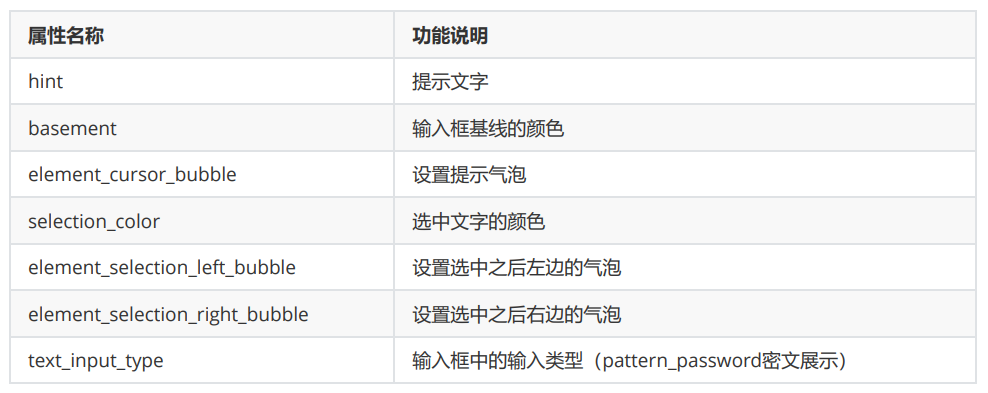
《TextField ohos:id=“$+id:text” ohos:height=“50vp” ohos:width=“319vp” ohos:background_element=“#FFFFFF” ohos:hint=“请输入信息” ohos:layout_alignment=“horizontal_center” ohos:text_alignment=“center” ohos:text_color=“#999999” ohos:text_size=“17fp” ohos:top_margin=“100vp”/》
2. TextField案例——获取文本输入框中的内容并进行Toast提示
通过TextField获取文本输入框中的内容并进行Toast提示
新建项目:TextFieldApplication
ability_main
《?xml version=“1.0” encoding=“utf-8”?》《DirectionalLayout xmlns:ohos=“http://schemas.huawei.com/res/ohos” ohos:height=“match_parent” ohos:width=“match_parent” ohos:background_element=“#F2F2F2” ohos:orientation=“vertical”》
《TextField ohos:id=“$+id:text” ohos:height=“50vp” ohos:width=“319vp” ohos:background_element=“#FFFFFF” ohos:hint=“请输入信息” ohos:layout_alignment=“horizontal_center” ohos:text_alignment=“center” ohos:text_color=“#999999” ohos:text_size=“17fp” ohos:top_margin=“100vp”/》
《Button ohos:id=“$+id:but” ohos:height=“47vp” ohos:width=“319vp” ohos:background_element=“#21a8FD” ohos:layout_alignment=“center” ohos:text=“获取信息” ohos:text_alignment=“center” ohos:text_color=“#FEFEFE” ohos:text_size=“24vp” ohos:top_margin=“77vp”/》
《/DirectionalLayout》
因为要在 onClick 方法中用到 TextField 和 Button 这两个组件,所以要把这两个组件移到成员位置,使其成为成员变量后,onClick 方法才能访问的到
MainAbilitySlice
package com.xdr630.textfieldapplication.slice;
import com.xdr630.textfieldapplication.ResourceTable;import ohos.aafwk.ability.AbilitySlice;import ohos.aafwk.content.Intent;import ohos.agp.components.Button;import ohos.agp.components.Component;import ohos.agp.components.TextField;import ohos.agp.utils.LayoutAlignment;import ohos.agp.window.dialog.ToastDialog;
public class MainAbilitySlice extends AbilitySlice implements Component.ClickedListener {
TextField tf; Button but;
@Override public void onStart(Intent intent) { super.onStart(intent); super.setUIContent(ResourceTable.Layout_ability_main);
//1.找到文本组件框对象 tf = (TextField) findComponentById(ResourceTable.Id_text); //找到按钮组件对象 but = (Button) findComponentById(ResourceTable.Id_but);
//2.给按钮绑定点击事件 //当点击了按钮之后,就要获取文本输入框的内容 but.setClickedListener(this);
}
@Override public void onActive() { super.onActive(); }
@Override public void onForeground(Intent intent) { super.onForeground(intent); }
@Override public void onClick(Component component) { //当点击了按钮之后,获取文本输入框的内容 String message = tf.getText(); //利用一个Toast将信息弹出 ToastDialog td = new ToastDialog(this); //大小不用设置,默认是包裹内容的 //自动关闭不用设置,默认到了时间之后就自动关闭 //默认持续时间是 2秒
//设置Toast的背景 td.setTransparent(true); //位置(默认居中) td.setAlignment(LayoutAlignment.BOTTOM); //设置一个偏移 td.setOffset(0,200); //设置Toast内容 td.setText(message); //让Toast出现 td.show(); }}
运行:
3. TextField组件高级用法
3.1 密码的密文展示
当输入密码的时候会变成密文展示
ohos:text_input_type=“pattern_password”:表示输入的密码以密文的方式显示
基本使用:
《?xml version=“1.0” encoding=“utf-8”?》《DirectionalLayout xmlns:ohos=“http://schemas.huawei.com/res/ohos” ohos:height=“match_parent” ohos:width=“match_parent” ohos:orientation=“vertical” ohos:background_element=“#F2F2F2”》
《TextField ohos:height=“50vp” ohos:width=“319vp” ohos:hint=“请输入信息” ohos:text_size=“17fp” ohos:hint_color=“#999999” ohos:text_alignment=“center” ohos:top_margin=“100vp” ohos:layout_alignment=“horizontal_center” ohos:background_element=“#FFFFFF” ohos:text_input_type=“pattern_password”/》
《/DirectionalLayout》
3.2 基线的设置
有的时候文本输入框并不是一个框,而是下面有一条横线,这条线华为官方叫做 基线
把文本输入框使用横线表示,在上面加上一条基线,把输入框的背景颜色去掉
《TextField ohos:height=“50vp” ohos:width=“319vp” ohos:hint=“请输入信息” ohos:text_size=“17fp” ohos:hint_color=“#999999” ohos:text_alignment=“center” ohos:top_margin=“100vp” ohos:layout_alignment=“horizontal_center” ohos:text_input_type=“pattern_password” ohos:basement=“#000000” /》
如果以后看到一条基线,然后在输入一些数字信息,这还是 TextField 文本输入框组件,只不过是背景色没有设置,让它跟布局的颜色一致了,看不到背景而已
3.3 气泡的设置
当用鼠标长按选中输入的内容后,就会选中内容,前面的光标和后面的光标,以及中间选中的内容颜色会改变,华为官方给前、后的光标,以及没有选中内容状态下出现的小气球取名为气泡
《TextField ohos:height=“50vp” ohos:width=“319vp” ohos:hint=“请输入信息” ohos:text_size=“17fp” ohos:hint_color=“#999999” ohos:text_alignment=“center” ohos:top_margin=“100vp” ohos:layout_alignment=“horizontal_center” ohos:basement=“#000000” /》
可以设置左边、右边,以及没有选中情况下的气泡
气泡的图片、颜色都是可以自定义的
以下用到的图片可自取:
https://www.aliyundrive.com/s/wT22d1Vb1BV
把左、右,以及中间没有选中的气泡图片复制到 media 文件夹下
《TextField ohos:height=“50vp” ohos:width=“319vp” ohos:hint=“请输入信息” ohos:text_size=“17fp” ohos:hint_color=“#999999” ohos:text_alignment=“center” ohos:top_margin=“100vp” ohos:layout_alignment=“horizontal_center” ohos:basement=“#000000” ohos:element_selection_left_bubble=“$media:left” ohos:element_selection_right_bubble=“$media:right” ohos:element_cursor_bubble=“$media:bubble” ohos:selection_color=“#FF0000” /》
ohos:element_selection_left_bubble、ohos:element_selection_right_bubble分别设置左右气泡显示的图片
ohos:element_cursor_bubble:设置没有选中时的气泡图片
ohos:selection_color:设置选中时内容的颜色
运行:
4. TextField案例——长按查看密码明文
在一些APP中,登录界面密码输入框那里有个小眼睛,按住小眼睛后就可以看到密码的明文展示,松开小眼睛又恢复到密文状态了
把“小眼睛”改成Button组件,实现的逻辑原理也是一样的
需求分析:
按住按钮不松,将输入框中的密码变成明文
松开按钮之后,输入框中的密码变回密文
新建项目:TextFieldApplication3
ability_main
《?xml version=“1.0” encoding=“utf-8”?》《DirectionalLayout xmlns:ohos=“http://schemas.huawei.com/res/ohos” ohos:height=“match_parent” ohos:width=“match_parent” ohos:orientation=“vertical” ohos:background_element=“#F2F2F2” 》
《TextField ohos:id=“$+id:text” ohos:height=“50vp” ohos:width=“319vp” ohos:hint=“请输入密码” ohos:text_size=“17fp” ohos:hint_color=“#999999” ohos:text_alignment=“center” ohos:top_margin=“100vp” ohos:layout_alignment=“horizontal_center” ohos:background_element=“#FFFFFF” ohos:text_input_type=“pattern_password”/》 《Button ohos:id=“$+id:but” ohos:height=“47vp” ohos:width=“319vp” ohos:text=“查看密码” ohos:text_size=“24vp” ohos:text_color=“#FEFEFE” ohos:text_alignment=“center” ohos:background_element=“#21a8FD” ohos:top_margin=“77vp” ohos:layout_alignment=“center”/》
《/DirectionalLayout》
MainAbilitySlice
package com.xdr630.textfieldapplication3.slice;
import com.xdr630.textfieldapplication3.ResourceTable;import ohos.aafwk.ability.AbilitySlice;import ohos.aafwk.content.Intent;import ohos.agp.components.Button;import ohos.agp.components.Component;import ohos.agp.components.InputAttribute;import ohos.agp.components.TextField;import ohos.multimodalinput.event.TouchEvent;
public class MainAbilitySlice extends AbilitySlice implements Component.TouchEventListener {
TextField tf;
@Override public void onStart(Intent intent) { super.onStart(intent); super.setUIContent(ResourceTable.Layout_ability_main);
//1.找到两个组件对象 tf = (TextField) findComponentById(ResourceTable.Id_text); Button but = (Button) findComponentById(ResourceTable.Id_but);
//2.要给按钮绑定一个触摸事件 //因为在触摸事件中,才能获取到按下不松或松开 //单击事件——只能捕获到点击了一下 but.setTouchEventListener(this);
}
@Override public void onActive() { super.onActive(); }
@Override public void onForeground(Intent intent) { super.onForeground(intent); }
@Override //参数一:现在触摸的按钮 //参数二:动作对象 public boolean onTouchEvent(Component component, TouchEvent touchEvent) { int action = touchEvent.getAction();
if (action == TouchEvent.PRIMARY_POINT_DOWN){//表示按下不松的时候 //当按下不送的时候,将文本框中密码变成明文 tf.setTextInputType(InputAttribute.PATTERN_NULL); }else if (action == TouchEvent.PRIMARY_POINT_UP){//表示松开的时候 //当松开的时候,将文本框中的密码变回密文 tf.setTextInputType(InputAttribute.PATTERN_PASSWORD); } //true:表示触摸事件的后续动作还会进行触发 //false:表示触摸事件只触发第一个按下不松 return true; }}
运行:
5. TextField案例——搭建登录界面
新建项目:TextFieldApplication4
细节说明:
Text文本(忘记密码了?)组件默认是左边放置的,加上 ohos:layout_alignment=“right”就是右边放置了,同时也给个ohos:right_margin=“20vp”和右边的屏幕有些距离。如果ohos:layout_alignment=“right”属性不写,直接写ohos:right_margin=“20vp,那么ohos:layout_alignment=”right“属性就会失效,因为组件默认是放在左边的。
ability_main
《?xml version=”1.0“ encoding=”utf-8“?》《DirectionalLayout xmlns:ohos=”http://schemas.huawei.com/res/ohos“ ohos:height=”match_parent“ ohos:width=”match_parent“ ohos:orientation=”vertical“ ohos:background_element=”#F2F2F2“》
《TextField ohos:id=”$+id:username“ ohos:height=”50vp“ ohos:width=”319vp“ ohos:hint=”请输入用户名“ ohos:text_size=”17fp“ ohos:hint_color=”#999999“ ohos:text_alignment=”center“ ohos:top_margin=”100vp“ ohos:layout_alignment=”horizontal_center“ ohos:background_element=”#FFFFFF“/》
《TextField ohos:id=”$+id:password“ ohos:height=”50vp“ ohos:width=”319vp“ ohos:hint=”请输入密码“ ohos:text_size=”17fp“ ohos:hint_color=”#999999“ ohos:text_alignment=”center“ ohos:top_margin=”10vp“ ohos:layout_alignment=”horizontal_center“ ohos:background_element=”#FFFFFF“ ohos:text_input_type=”pattern_password“/》 《Text ohos:height=”match_content“ ohos:width=”match_content“ ohos:text=”忘记密码了?“ ohos:text_size=”17fp“ ohos:text_color=”#979797“ ohos:top_margin=”13vp“ ohos:layout_alignment=”right“ ohos:right_margin=”20vp“/》 《Button ohos:height=”47vp“ ohos:width=”319vp“ ohos:text=”登录“ ohos:text_size=”24fp“ ohos:text_color=”#FEFEFE“ ohos:text_alignment=”center“ ohos:background_element=”#21a8FD“ ohos:top_margin=”77vp“ ohos:layout_alignment=”horizontal_center“/》
《Button ohos:height=”47vp“ ohos:width=”319vp“ ohos:text=”注册“ ohos:text_size=”24fp“ ohos:text_color=”#FEFEFE“ ohos:text_alignment=”center“ ohos:background_element=”#21a8FD“ ohos:top_margin=”13vp“ ohos:layout_alignment=”horizontal_center“/》
《/DirectionalLayout》
责任编辑:haq
-
操作系统
+关注
关注
37文章
7439浏览量
129621 -
文本
+关注
关注
0文章
120浏览量
17915 -
HarmonyOS
+关注
关注
80文章
2157浏览量
36294
原文标题:【鸿蒙实战】HarmonyOS实战——TextField文本输入框组件基本使用
文章出处:【微信号:gh_9b9470648b3c,微信公众号:电子发烧友论坛】欢迎添加关注!文章转载请注明出处。
发布评论请先 登录
钉钉正式开源HarmonyOS图片编辑组件
【HarmonyOS 5】鸿蒙中常见的标题栏布局方案
【HarmonyOS 5】鸿蒙中进度条的使用详解
【HarmonyOS 5】鸿蒙页面和组件生命周期函数
【HarmonyOS 5】金融应用开发鸿蒙组件实践

【 HarmonyOS 5 入门系列 】鸿蒙HarmonyOS示例项目讲解
鸿蒙中Stage模型与FA模型详解
如何监听组件再次显示的事件?
HarmonyOS入门指南
HarmonyOS NEXT应用元服务布局合理使用布局组件
HarmonyOS基础组件:Button三种类型的使用

HarmonyOS实战:组件化项目搭建
京东开源Taro on HarmonyOS C-API版本



评论