


 怎样通过CircuitPython使用Adafruit eInk / ePaper显示屏

概述
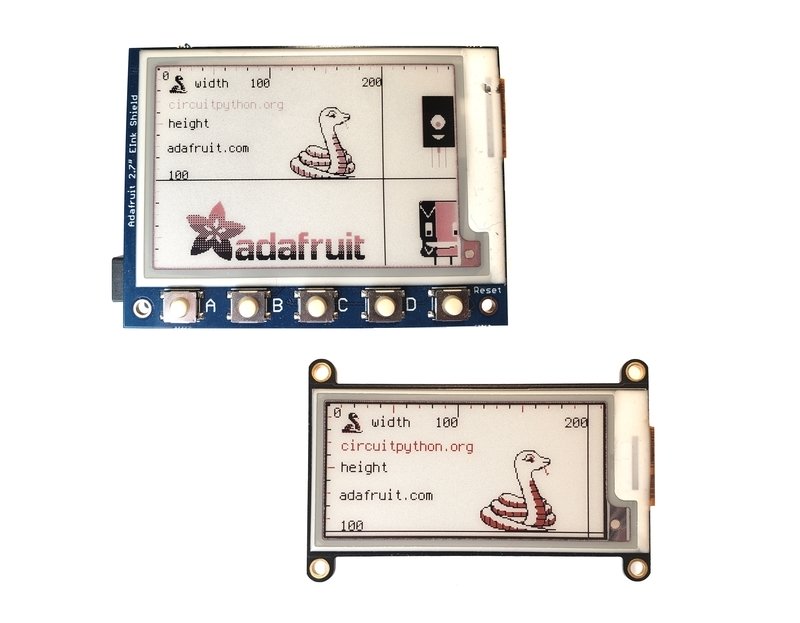
本指南旨在帮助您通过CircuitPython快速使用Adafruit 2.13“三色电子墨水FeatherWing和2.7”三色电子墨水屏蔽。
这些显示器已经带有标题焊接-屏蔽型的公头和羽毛型的母头。这使它们无需焊接即可插入各自的微控制器。放在微控制器上,上传代码和图形文件,然后显示!
刷新时间
大多数LCD,OLED和LED显示屏都可以很快地写入,这有助于轻松地移动图形和颜色。
对于eInk显示屏, 不是这种情况。擦除图像涉及向显示器发送特殊信号,以“消除”彩色像素的显示。 Adafruit建议不要每隔180秒(3分钟)刷新一次这些显示器。
如果将它们更快地写入,则可能会损坏显示器。损坏的显示器可能会永久打开或关闭像素或出现其他异常情况,从而使保修无效。
电子墨水显示器即使在关闭电源的情况下仍会继续显示图像。如果您想要一个相当静态的图像(例如图片或名片),则eInk很棒。
如果您想要清晰,很少变化的显示,则eInk很棒。有关快速变化的信息,请考虑使用其他类型的显示器,例如TFT或OLED。
零件 羽毛形状因数
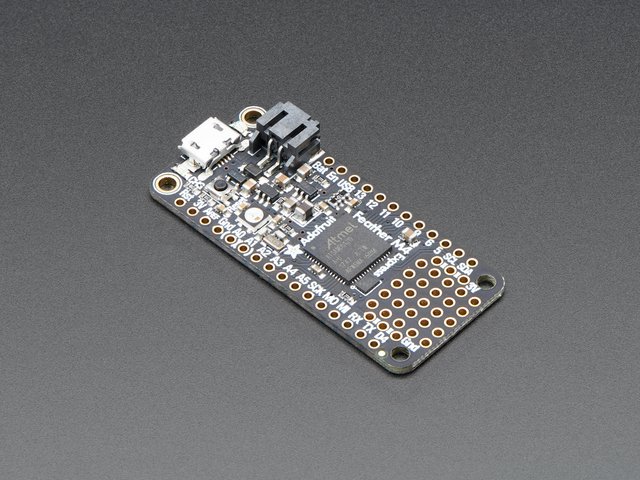
Adafruit Feather M4 Express-配备ATSAMD51
产品编号:3857
这就是您一直期待的配备ATSAMD51的Feather M4 Express。这羽羽毛像迅捷一样迅捷,像猫头鹰一样聪明,像牛鸟一样强壮(它是半牛,……
$ 22.95
库存
添加到购物车
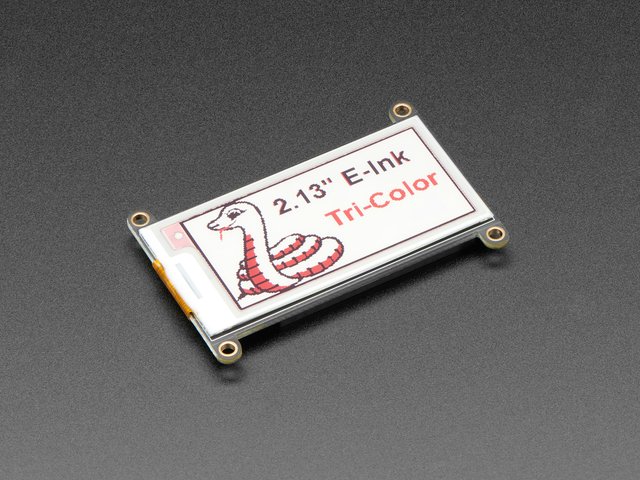
Adafruit 2.13英寸三色电子墨水/电子纸显示屏FeatherWing
产品ID:4128
简单的电子纸终于出现在您的Feather上,旨在轻松添加三色eInk显示器的突破口,您可能已经看到其中一种。..
$ 24.95
入库存
添加到购物车
Metro Form Factor
/div》
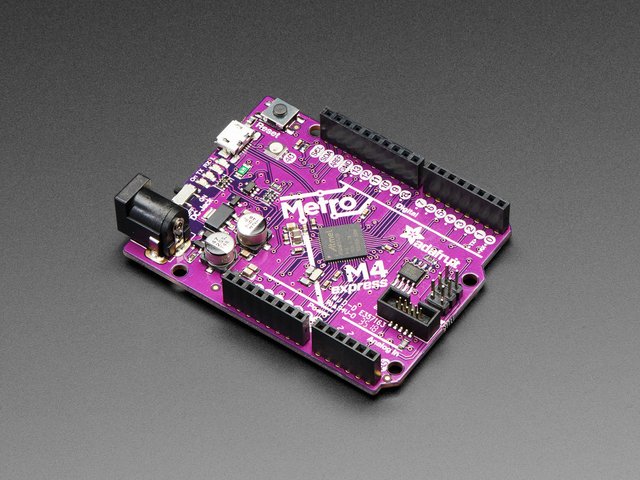
Adafruit Metro M4特性Microchip ATSAMD51
产品ID:3382
您准备好了吗?真的准备好了吗?这是有史以来最快,功能最强大的Metro。AdafruitMetro M4具有Microchip ATSAMD51。这。..
$ 27.50
入库价
添加到购物车
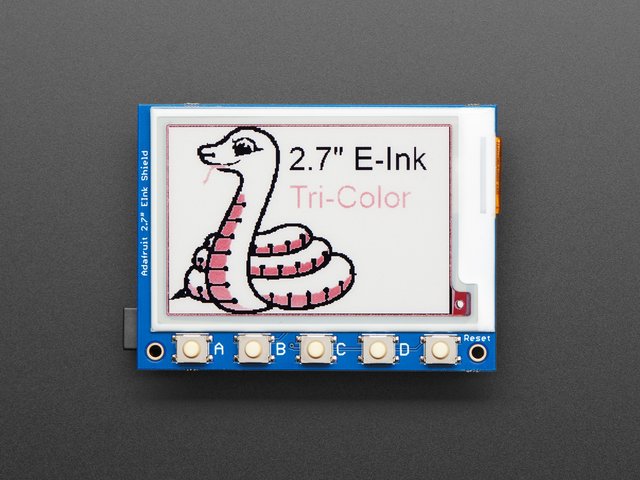
Adafruit带有SRAM的2.7英寸三色eInk/ePaper防护罩
产品ID:4229
易于使用的电子纸终于出现在微控制器上,这一突破旨在使其轻而易举地添加三色电子墨水显示屏。您可能已经看过其中之一。..
$ 39.95
入库存
添加到购物车
如果USB数据加电源线的一端适合您的计算机,而另一端具有micro B连接器,则可以使用。下面的一个是最喜欢的,但可以根据需要选择自己的一个。
粉红色和紫色编织的USB A到Micro B电缆-2米长
产品ID:4148
该电缆非常流行,具有编织的粉红色和紫色Blinka图案。封面和包覆成型。我们将这些颜色制成自定义颜色,。..
$ 3.95
入库存
添加到购物车
2.13英寸三色电子墨水羽翼
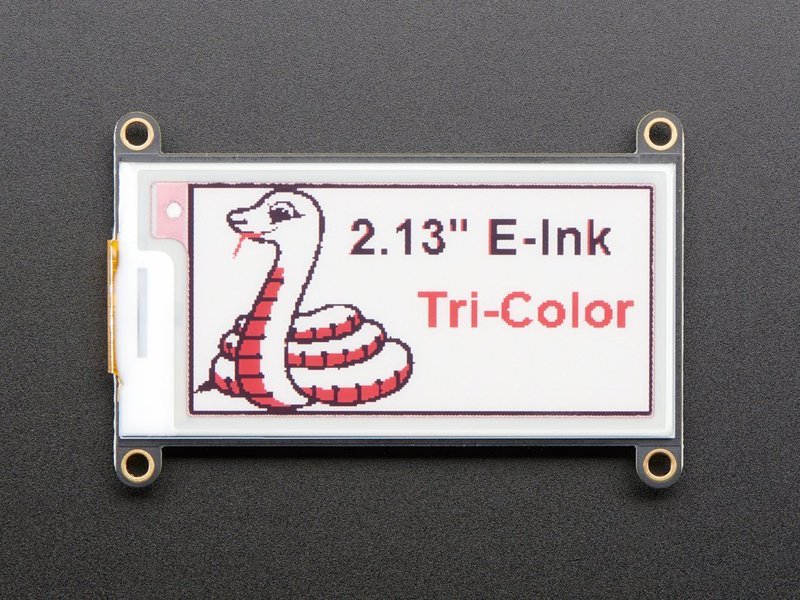
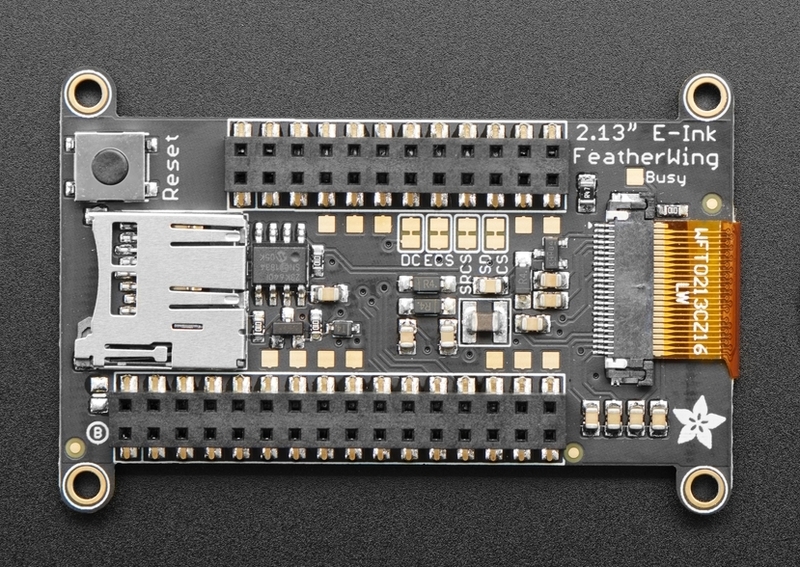
eInk FeatherWIng非常易于使用。它的背面有SD卡分线,母头连接到Feather微控制器。
与羽毛微控制器的连接 《对于具有大量内存的快速芯片,示例将其与Adafruit Feather M4 Express微控制器一起使用。目前,该板带有未焊接的接头。
2.7英寸三色电子墨水盾
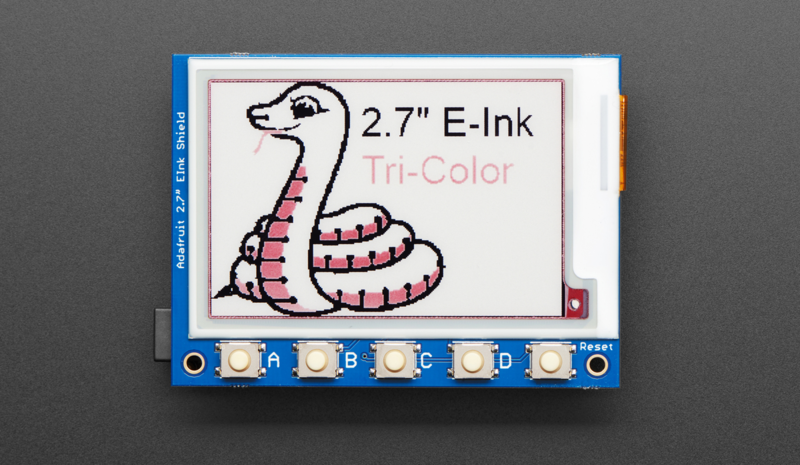
此显示器采用Arduino屏蔽形式,非常易于使用,背面具有SD卡分线,公头可插入Metro尺寸微控制器。
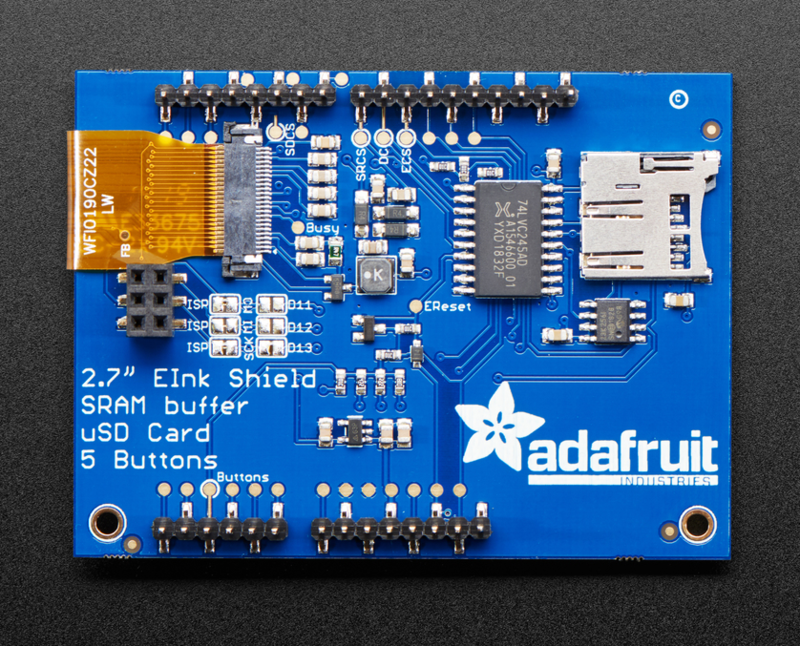
与Metro微控制器的连接
对于具有大量内存的快速芯片,本示例将此显示器与Adafruit Metro M4 Express微控制器一起使用,屏蔽层应插入带有插头的Metro M4中。如果您的Metro没有母头,请焊接它们。
CircuitPython和库设置
编程
该CircuitPython指南中的所有快速入门示例均使用CircuitPython 5.0及更高版本中的新displayio驱动程序。该代码提供了强大的屏幕合成功能,并且已经过优化。虽然有使用旧版adafruit_epd方法的CircuitPython代码示例,但将来会使用displayio。
在Feather上更新CircuitPython
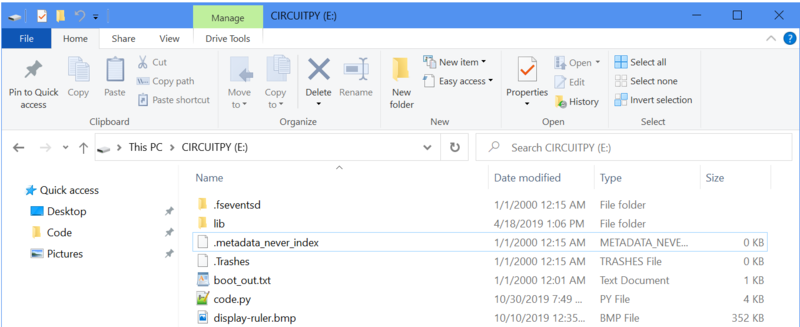
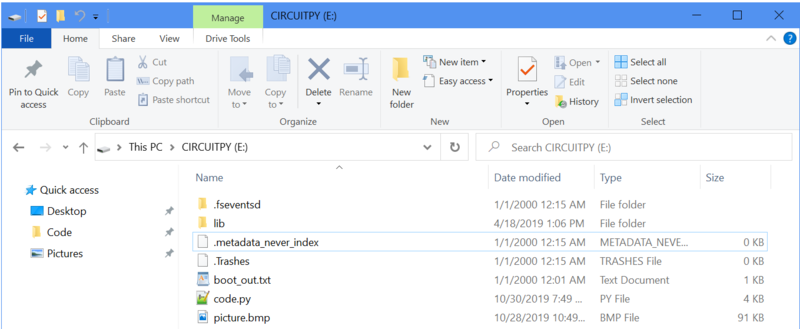
您应该检查Feather上运行的CircuitPython的版本。使用已知的优质数据+电源USB电缆将开发板插入计算机。该板应该显示为名为 CIRCUITPY 的计算机上的磁盘驱动器。
打开 boot_out.txt 。这将向您显示电路板已加载的CircuitPython的版本。
下载:文件
复制代码
Adafruit CircuitPython 5.0.0-alpha.4 on 2019-09-15; Adafruit Feather M4 Express with samd51j19 Adafruit CircuitPython 5.0.0-alpha.4 on 2019-09-15; Adafruit Feather M4 Express with samd51j19
displayio需要CircuitPython 5或更高版本。如果您的电路板运行的是CircuitPython的较低版本,则需要对其进行更新。为您的电路板升级到最新版本的Adafruit CircuitPython。
必需的CircuitPython库
要显示带有displayio的位图,只有一个必需的库,但这取决于您使用的显示。
首先,确保为您的电路板运行最新版本的Adafruit CircuitPython。
接下来,您需要安装必要的库才能使用硬件。仔细按照以下步骤从Adafruit的CircuitPython库捆绑包中查找并安装该库。我们的简介指南上有一个很棒的页面,介绍如何为Express和非Express板安装库捆绑包。
由于捆绑包中的库数量众多,建议您从以下位置手动安装必要的库捆绑包。第一个库取决于您使用的eInk显示器:
羽毛和2.13“三色eInk显示器
adafruit_IL0373
Metro和2.7英寸三色电子墨水显示屏
adafruit_il91874
接下来,获得以下信息用于在displayio显示器上显示文本的库。它用于第二个和第三个示例。
adafruit_display_text
在继续之前,请确保您董事会的 lib 文件夹具有正确的驱动程序文件和 adafruit_display_text 库已复制。
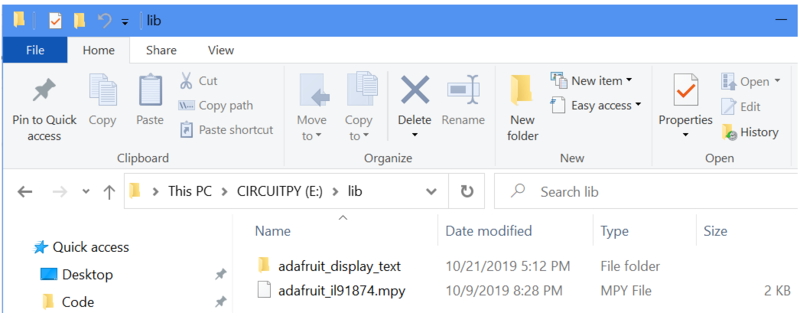
示例:单个位图
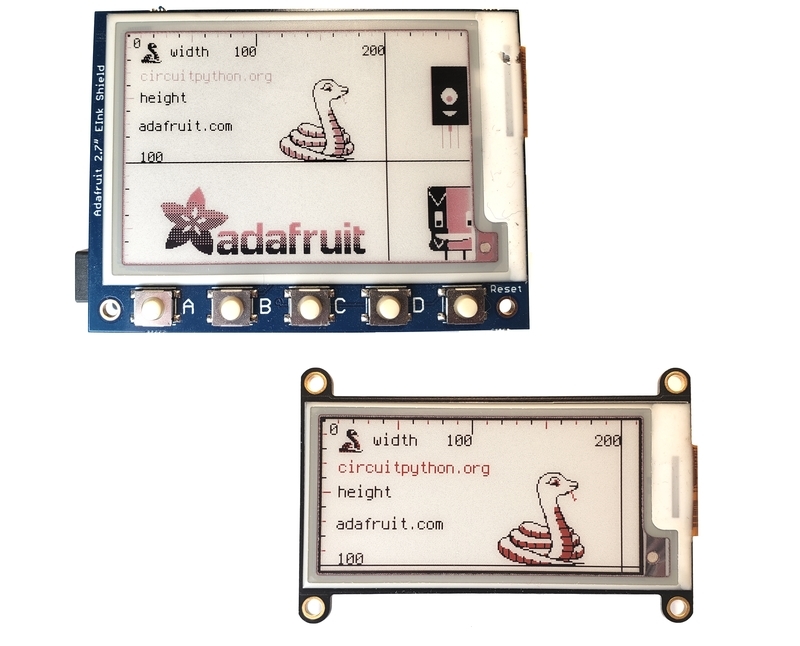
第一个示例读取放置在电路板 CIRCUITPY 驱动器上的位图图像,并将其显示在eInk显示屏上。
图像
本示例中使用的图像是CircuitPython文本图像,显示了各种元素。您可以通过单击下面的绿色按钮下载它。
display-ruler.bmp
用于制作自己的图形,使其可以在三种颜色上显示得体在这些显示器上可用,请参阅指南为电子墨水显示器准备图形。
如果图片大于显示器的宽度和高度,则其余部分将被截断而不显示。建议您在使用图像编辑器之前先缩放图像,因为代码不会缩放位图。
将要使用的位图缩放到图像编辑器和抖动中的显示宽度和高度,否则仅使用黑色/白色/红色。该代码无法对位图文件执行图像缩放。
代码
下面的代码将在主板的闪存驱动器(在 CIRCUITPY 根目录中)上放置一个位图,并将其显示在eInk显示屏上。请参阅代码中的注释,以了解每个步骤如何有助于该过程。
请选择特定于显示器和微控制器的代码,因为以下两个代码块对两组硬件均不可互换。这些示例几乎完全相同。
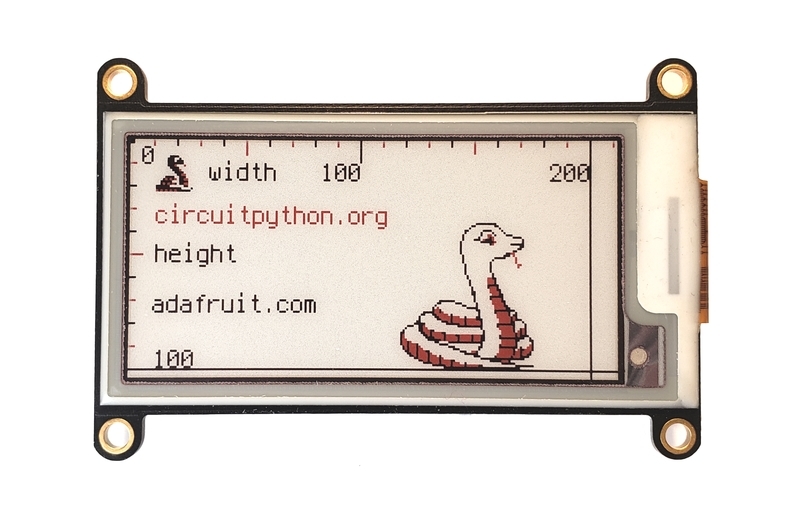
2.13“ eink FeatherWing示例
图钉反映了FeatherWing eInk显示器和Feather M4的组合。它还具有2.13英寸显示器的像素尺寸。
下载:Zip 或 il91874_simpletest.py | 在Github上查看
复制代码
“”“
Simple test script for 2.7” 264x176 Tri-Color display shield
Supported products:
* Adafruit 2.7“ Tri-Color ePaper Display Shield
https://www.adafruit.com/product/4229
This program only requires the adafruit_il91874 library in /lib
for CircuitPython 5.0 and above which has displayio support.
”“”
import time
import board
import displayio
import adafruit_il91874
# Used to ensure the display is free in CircuitPython
displayio.release_displays()
# Define the pins needed for display use on the Metro
spi = board.SPI()
epd_cs = board.D10
epd_dc = board.D9
# Create the displayio connection to the display pins
display_bus = displayio.FourWire(spi, command=epd_dc, chip_select=epd_cs,
baudrate=1000000)
time.sleep(1) # Wait a bit
# Create the display object - the third color is red (0xff0000)
display = adafruit_il91874.IL91874(display_bus, width=264, height=176,
highlight_color=0xff0000, rotation=90)
# Create a display group for our screen objects
g = displayio.Group()
# Display a ruler graphic from the root directory of the CIRCUITPY drive
f = open(“/display-ruler.bmp”, “rb”)
pic = displayio.OnDiskBitmap(f)
# Create a Tilegrid with the bitmap and put in the displayio group
t = displayio.TileGrid(pic, pixel_shader=displayio.ColorConverter())
g.append(t)
# Place the display group on the screen (does not refresh)
display.show(g)
# Show the image on the display
display.refresh()
print(“refreshed”)
# Do Not refresh the screen more often than every 180 seconds
# for eInk displays! Rapid refreshes will damage the panel.
time.sleep(180)
“”“
Simple test script for 2.7” 264x176 Tri-Color display shield
Supported products:
* Adafruit 2.7“ Tri-Color ePaper Display Shield
https://www.adafruit.com/product/4229
This program only requires the adafruit_il91874 library in /lib
for CircuitPython 5.0 and above which has displayio support.
”“”
import time
import board
import displayio
import adafruit_il91874
# Used to ensure the display is free in CircuitPython
displayio.release_displays()
# Define the pins needed for display use on the Metro
spi = board.SPI()
epd_cs = board.D10
epd_dc = board.D9
# Create the displayio connection to the display pins
display_bus = displayio.FourWire(spi, command=epd_dc, chip_select=epd_cs,
baudrate=1000000)
time.sleep(1) # Wait a bit
# Create the display object - the third color is red (0xff0000)
display = adafruit_il91874.IL91874(display_bus, width=264, height=176,
highlight_color=0xff0000, rotation=90)
# Create a display group for our screen objects
g = displayio.Group()
# Display a ruler graphic from the root directory of the CIRCUITPY drive
f = open(“/display-ruler.bmp”, “rb”)
pic = displayio.OnDiskBitmap(f)
# Create a Tilegrid with the bitmap and put in the displayio group
t = displayio.TileGrid(pic, pixel_shader=displayio.ColorConverter())
g.append(t)
# Place the display group on the screen (does not refresh)
display.show(g)
# Show the image on the display
display.refresh()
print(“refreshed”)
# Do Not refresh the screen more often than every 180 seconds
# for eInk displays! Rapid refreshes will damage the panel.
time.sleep(180)
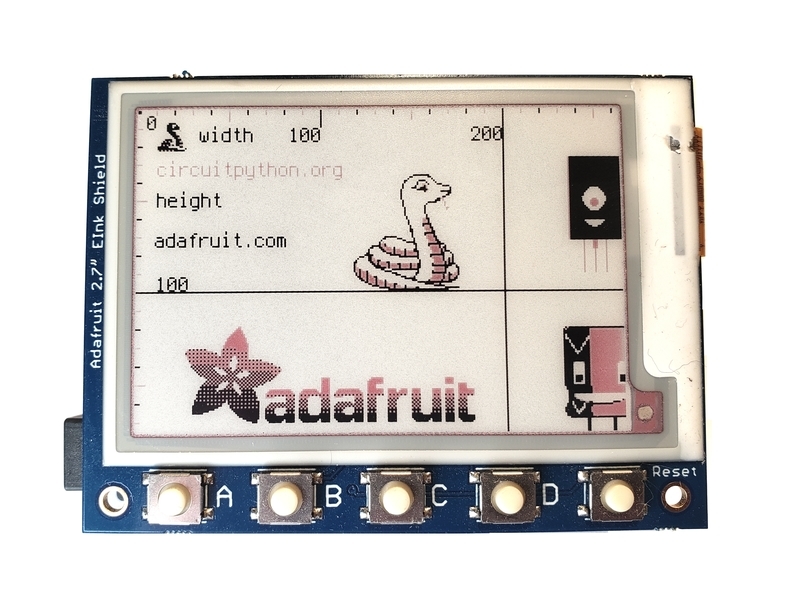
2.7“ eInk Shield示例
这些引脚反映了屏蔽eInk显示屏和Metro M4的组合。它还具有2.7英寸显示屏的像素尺寸。
下载:Project Zip 或 il0373_2.13_color.py | 在Github上查看
复制代码
“”“Simple test script for Adafruit 2.13” 212x104 tri-color display
Supported products:
* Adafruit 2.13“ Tri-Color Display Breakout
* https://www.adafruit.com/product/4086 (breakout) or
* https://www.adafruit.com/product/4128 (FeatherWing)
”“”
import time
import board
import displayio
import adafruit_il0373
# Used to ensure the display is free in CircuitPython
displayio.release_displays()
# Define the pins needed for display use
# This pinout is for a Feather M4 and may be different for other boards
spi = board.SPI() # Uses SCK and MOSI
epd_cs = board.D9
epd_dc = board.D10
epd_reset = board.D5
epd_busy = board.D6
# Create the displayio connection to the display pins
display_bus = displayio.FourWire(spi, command=epd_dc, chip_select=epd_cs,
reset=epd_reset, baudrate=1000000)
time.sleep(1) # Wait a bit
# Create the display object - the third color is red (0xff0000)
display = adafruit_il0373.IL0373(display_bus, width=212, height=104,
rotation=90, busy_pin=epd_busy,
highlight_color=0xff0000)
# Create a display group for our screen objects
g = displayio.Group()
# Display a ruler graphic from the root directory of the CIRCUITPY drive
f = open(“/display-ruler.bmp”, “rb”)
pic = displayio.OnDiskBitmap(f)
# Create a Tilegrid with the bitmap and put in the displayio group
t = displayio.TileGrid(pic, pixel_shader=displayio.ColorConverter())
g.append(t)
# Place the display group on the screen
display.show(g)
# Refresh the display to have it actually show the image
# NOTE: Do not refresh eInk displays sooner than 180 seconds
display.refresh()
print(“refreshed”)
time.sleep(180)
“”“Simple test script for Adafruit 2.13” 212x104 tri-color display
Supported products:
* Adafruit 2.13“ Tri-Color Display Breakout
* https://www.adafruit.com/product/4086 (breakout) or
* https://www.adafruit.com/product/4128 (FeatherWing)
”“”
import time
import board
import displayio
import adafruit_il0373
# Used to ensure the display is free in CircuitPython
displayio.release_displays()
# Define the pins needed for display use
# This pinout is for a Feather M4 and may be different for other boards
spi = board.SPI() # Uses SCK and MOSI
epd_cs = board.D9
epd_dc = board.D10
epd_reset = board.D5
epd_busy = board.D6
# Create the displayio connection to the display pins
display_bus = displayio.FourWire(spi, command=epd_dc, chip_select=epd_cs,
reset=epd_reset, baudrate=1000000)
time.sleep(1) # Wait a bit
# Create the display object - the third color is red (0xff0000)
display = adafruit_il0373.IL0373(display_bus, width=212, height=104,
rotation=90, busy_pin=epd_busy,
highlight_color=0xff0000)
# Create a display group for our screen objects
g = displayio.Group()
# Display a ruler graphic from the root directory of the CIRCUITPY drive
f = open(“/display-ruler.bmp”, “rb”)
pic = displayio.OnDiskBitmap(f)
# Create a Tilegrid with the bitmap and put in the displayio group
t = displayio.TileGrid(pic, pixel_shader=displayio.ColorConverter())
g.append(t)
# Place the display group on the screen
display.show(g)
# Refresh the display to have it actually show the image
# NOTE: Do not refresh eInk displays sooner than 180 seconds
display.refresh()
print(“refreshed”)
time.sleep(180)
代码查看
有关使用对于使用CircuitPython进行显示,出色的指南CircuitPython显示支持使用displayio是您的第一站。如果您想更深入地了解用于显示器的模型,请参阅本指南。
Adafruit建议在尝试执行其他代码以确保将显示器连接至显示器之前,使用 displayio函数。硬件是由CircuitPython发行的。
下一步是让微控制器知道显示器上使用了哪些引脚。所使用的销钉非常依赖于显示器,建议在寻求更换之前,先参考显示器上的指南以了解已知的有效工作配置。 displayio.release_displays设置与显示总线的displayio.FourWire连接。
通过总线,程序将建立与显示驱动程序的连接。给出了显示的大小(displayio和width),方向(height),忙碌引脚和突出显示颜色。对于此三色显示,指定了红色(rotation)。
其余代码遵循标准的0xff0000显示设置和使用:
创建显示组
打开要在显示器上放置的位图
创建位图对象
创建一个TileGrid以使用位图放置对象,并将图块组附加到显示组
在屏幕上显示显示
刷新屏幕
最后,程序等待至少3分钟。然后,程序将完成并转到REPL。如果位图应保留在屏幕上,请在程序末尾添加displayio和while True:语句。
示例:简单文本
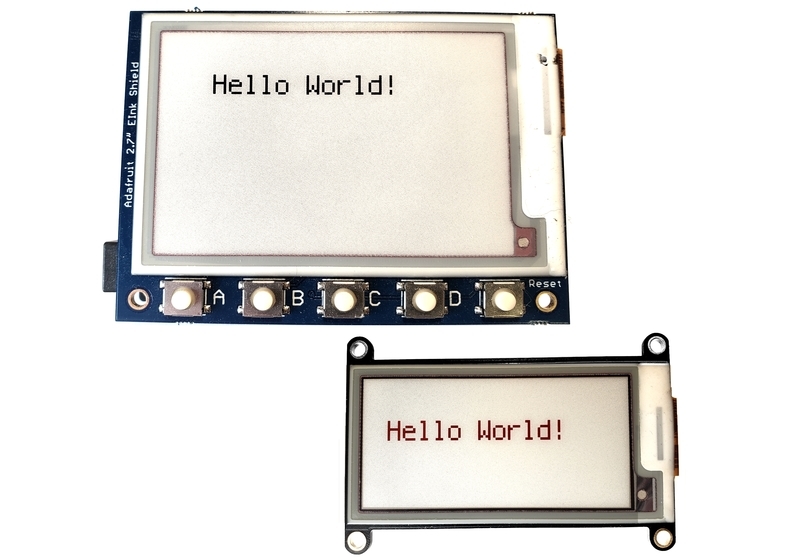
此示例在eInk显示屏上显示文本,可以说是eInk的“ Hello World”。文本可以放在任何地方并缩放更大。
代码
下面的代码将使用内部terminalio字体在eInk显示屏上显示一行文本。您可以设置前景色和背景色。请参阅注释以了解每个步骤如何对过程作出贡献。
请选择特定于显示器和微控制器的代码,因为以下两个代码块对于两组硬件均不可互换。这些示例几乎完全相同。
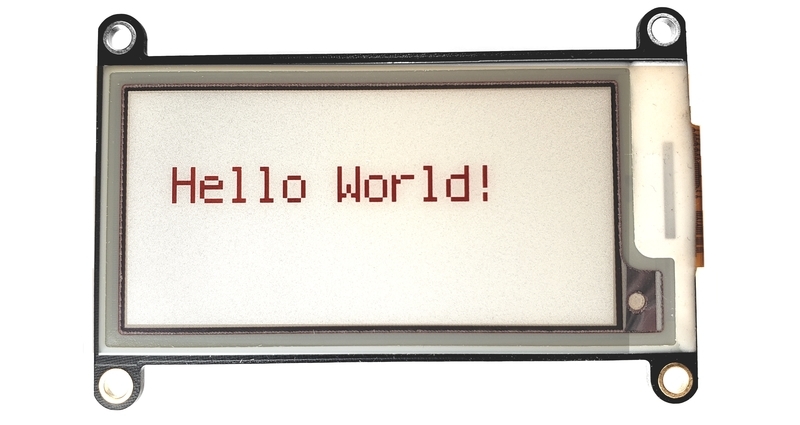
2.13“ eink FeatherWing示例
图钉反映了FeatherWing eInk显示器和Feather M4的组合。它还具有2.13英寸显示器的像素尺寸。
下载:Project Zip 或 213_tricolor_eink_fw_text.py | 在Github上查看
复制代码
“”“
Simple text script for Adafruit 2.13” 212x104 tri-color display
Supported products:
* Adafruit 2.13“ Tri-Color Display Breakout
* Adafruit 2.13” Tri-Color Display FeatherWing
https://www.adafruit.com/product/4086 (breakout) or
https://www.adafruit.com/product/4128 (FeatherWing)
This program requires the adafruit_il0373 library and the
adafruit_display_text library in the CIRCUITPY /lib folder
for CircuitPython 5.0 and above which has displayio support.
“”“
import time
import board
import displayio
import adafruit_il0373
import terminalio
from adafruit_display_text import label
BLACK = 0x000000
WHITE = 0xFFFFFF
RED = 0xFF0000
# Change text colors, choose from the following values:
# BLACK, RED, WHITE
FOREGROUND_COLOR = RED
BACKGROUND_COLOR = WHITE
# Used to ensure the display is free in CircuitPython
displayio.release_displays()
# Define the pins needed for display use
# This pinout is for a Feather M4 and may be different for other boards
spi = board.SPI() # Uses SCK and MOSI
epd_cs = board.D9
epd_dc = board.D10
epd_reset = board.D5
epd_busy = board.D6
# Create the displayio connection to the display pins
display_bus = displayio.FourWire(spi, command=epd_dc, chip_select=epd_cs,
reset=epd_reset, baudrate=1000000)
time.sleep(1) # Wait a bit
# Create the display object - the third color is red (0xff0000)
DISPLAY_WIDTH = 212
DISPLAY_HEIGHT = 104
display = adafruit_il0373.IL0373(display_bus, width=DISPLAY_WIDTH,
height=DISPLAY_HEIGHT,
rotation=90, busy_pin=epd_busy,
highlight_color=0xff0000)
# Create a display group for our screen objects
g = displayio.Group(max_size=10)
# Set a background
background_bitmap = displayio.Bitmap(DISPLAY_WIDTH, DISPLAY_HEIGHT, 1)
# Map colors in a palette
palette = displayio.Palette(1)
palette[0] = BACKGROUND_COLOR
# Create a Tilegrid with the background and put in the displayio group
t = displayio.TileGrid(background_bitmap, pixel_shader=palette)
g.append(t)
# Draw simple text using the built-in font into a displayio group
text_group = displayio.Group(max_size=10, scale=2, x=20, y=40)
text = ”Hello World!“
text_area = label.Label(terminalio.FONT, text=text, color=FOREGROUND_COLOR)
text_group.append(text_area) # Add this text to the text group
g.append(text_group)
# Place the display group on the screen
display.show(g)
# Refresh the display to have everything show on the display
# NOTE: Do not refresh eInk displays more often than 180 seconds!
display.refresh()
time.sleep(120)
while True:
pass
”“”
Simple text script for Adafruit 2.13“ 212x104 tri-color display
Supported products:
* Adafruit 2.13” Tri-Color Display Breakout
* Adafruit 2.13“ Tri-Color Display FeatherWing
https://www.adafruit.com/product/4086 (breakout) or
https://www.adafruit.com/product/4128 (FeatherWing)
This program requires the adafruit_il0373 library and the
adafruit_display_text library in the CIRCUITPY /lib folder
for CircuitPython 5.0 and above which has displayio support.
”“”
import time
import board
import displayio
import adafruit_il0373
import terminalio
from adafruit_display_text import label
BLACK = 0x000000
WHITE = 0xFFFFFF
RED = 0xFF0000
# Change text colors, choose from the following values:
# BLACK, RED, WHITE
FOREGROUND_COLOR = RED
BACKGROUND_COLOR = WHITE
# Used to ensure the display is free in CircuitPython
displayio.release_displays()
# Define the pins needed for display use
# This pinout is for a Feather M4 and may be different for other boards
spi = board.SPI() # Uses SCK and MOSI
epd_cs = board.D9
epd_dc = board.D10
epd_reset = board.D5
epd_busy = board.D6
# Create the displayio connection to the display pins
display_bus = displayio.FourWire(spi, command=epd_dc, chip_select=epd_cs,
reset=epd_reset, baudrate=1000000)
time.sleep(1) # Wait a bit
# Create the display object - the third color is red (0xff0000)
DISPLAY_WIDTH = 212
DISPLAY_HEIGHT = 104
display = adafruit_il0373.IL0373(display_bus, width=DISPLAY_WIDTH,
height=DISPLAY_HEIGHT,
rotation=90, busy_pin=epd_busy,
highlight_color=0xff0000)
# Create a display group for our screen objects
g = displayio.Group(max_size=10)
# Set a background
background_bitmap = displayio.Bitmap(DISPLAY_WIDTH, DISPLAY_HEIGHT, 1)
# Map colors in a palette
palette = displayio.Palette(1)
palette[0] = BACKGROUND_COLOR
# Create a Tilegrid with the background and put in the displayio group
t = displayio.TileGrid(background_bitmap, pixel_shader=palette)
g.append(t)
# Draw simple text using the built-in font into a displayio group
text_group = displayio.Group(max_size=10, scale=2, x=20, y=40)
text = “Hello World!”
text_area = label.Label(terminalio.FONT, text=text, color=FOREGROUND_COLOR)
text_group.append(text_area) # Add this text to the text group
g.append(text_group)
# Place the display group on the screen
display.show(g)
# Refresh the display to have everything show on the display
# NOTE: Do not refresh eInk displays more often than 180 seconds!
display.refresh()
time.sleep(120)
while True:
pass
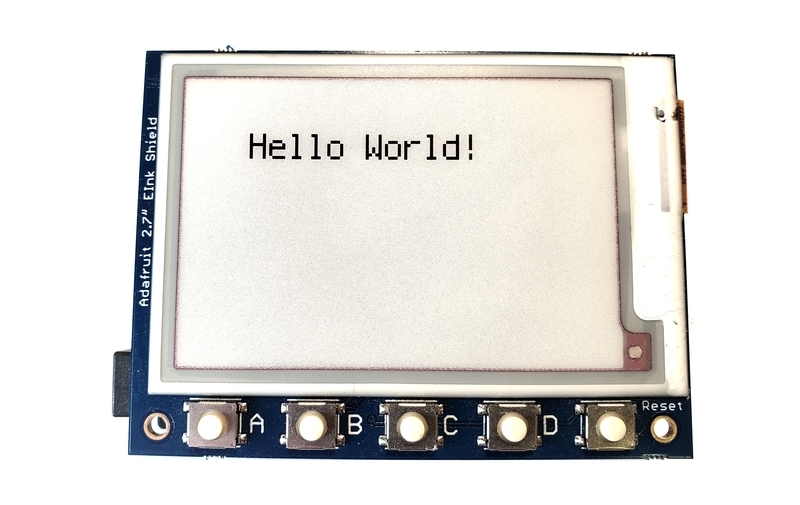
2.7“ eInk Shield示例
这些引脚反映了屏蔽eInk显示屏和Metro M4的组合。它还具有2.7英寸显示屏的像素尺寸。
下载:Project Zip 或 27_tricolor_eink_shiel d_text.py | 在Github上查看
复制代码
“”“
Simple text script for 2.7” 264x176 Tri-Color display shield
Supported products:
* Adafruit 2.7“ Tri-Color ePaper Display Shield
https://www.adafruit.com/product/4229
This program requires the adafruit_il91874 and the
adafruit_display_text library in /lib on the CIRCUITPY drive
for CircuitPython 5.0 and above which has displayio support.
”“”
import time
import board
import displayio
import adafruit_il91874
import terminalio
from adafruit_display_text import label
BLACK = 0x000000
WHITE = 0xFFFFFF
RED = 0xFF0000
# Change text colors, choose from the following values:
# BLACK, WHITE, RED (note red on this display is not vivid)
FOREGROUND_COLOR = BLACK
BACKGROUND_COLOR = WHITE
# Used to ensure the display is free in CircuitPython
displayio.release_displays()
# Define the pins needed for display use on the Metro
spi = board.SPI()
epd_cs = board.D10
epd_dc = board.D9
# Create the displayio connection to the display pins
display_bus = displayio.FourWire(spi, command=epd_dc, chip_select=epd_cs,
baudrate=1000000)
time.sleep(1) # Wait a bit
# Create the display object - the third color is red (0xff0000)
DISPLAY_WIDTH = 264
DISPLAY_HEIGHT = 176
# Create the display object - the third color is red (0xff0000)
display = adafruit_il91874.IL91874(display_bus, width=DISPLAY_WIDTH,
height=DISPLAY_HEIGHT,
highlight_color=0xff0000, rotation=90)
# Create a display group for our screen objects
g = displayio.Group(max_size=10)
# Set a white background
background_bitmap = displayio.Bitmap(DISPLAY_WIDTH, DISPLAY_HEIGHT, 1)
# Map colors in a palette
palette = displayio.Palette(1)
palette[0] = BACKGROUND_COLOR
# Create a Tilegrid with the background and put in the displayio group
t = displayio.TileGrid(background_bitmap, pixel_shader=palette)
g.append(t)
# Draw simple text using the built-in font into a displayio group
text_group = displayio.Group(max_size=10, scale=2, x=40, y=40)
text = “Hello World!”
text_area = label.Label(terminalio.FONT, text=text, color=FOREGROUND_COLOR)
text_group.append(text_area) # Add this text to the text group
g.append(text_group)
# Place the display group on the screen
display.show(g)
# Refresh the display to have everything show on the display
# NOTE: Do not refresh eInk displays more often than 180 seconds!
display.refresh()
time.sleep(180)
while True:
pass
“”“
Simple text script for 2.7” 264x176 Tri-Color display shield
Supported products:
* Adafruit 2.7“ Tri-Color ePaper Display Shield
https://www.adafruit.com/product/4229
This program requires the adafruit_il91874 and the
adafruit_display_text library in /lib on the CIRCUITPY drive
for CircuitPython 5.0 and above which has displayio support.
”“”
import time
import board
import displayio
import adafruit_il91874
import terminalio
from adafruit_display_text import label
BLACK = 0x000000
WHITE = 0xFFFFFF
RED = 0xFF0000
# Change text colors, choose from the following values:
# BLACK, WHITE, RED (note red on this display is not vivid)
FOREGROUND_COLOR = BLACK
BACKGROUND_COLOR = WHITE
# Used to ensure the display is free in CircuitPython
displayio.release_displays()
# Define the pins needed for display use on the Metro
spi = board.SPI()
epd_cs = board.D10
epd_dc = board.D9
# Create the displayio connection to the display pins
display_bus = displayio.FourWire(spi, command=epd_dc, chip_select=epd_cs,
baudrate=1000000)
time.sleep(1) # Wait a bit
# Create the display object - the third color is red (0xff0000)
DISPLAY_WIDTH = 264
DISPLAY_HEIGHT = 176
# Create the display object - the third color is red (0xff0000)
display = adafruit_il91874.IL91874(display_bus, width=DISPLAY_WIDTH,
height=DISPLAY_HEIGHT,
highlight_color=0xff0000, rotation=90)
# Create a display group for our screen objects
g = displayio.Group(max_size=10)
# Set a white background
background_bitmap = displayio.Bitmap(DISPLAY_WIDTH, DISPLAY_HEIGHT, 1)
# Map colors in a palette
palette = displayio.Palette(1)
palette[0] = BACKGROUND_COLOR
# Create a Tilegrid with the background and put in the displayio group
t = displayio.TileGrid(background_bitmap, pixel_shader=palette)
g.append(t)
# Draw simple text using the built-in font into a displayio group
text_group = displayio.Group(max_size=10, scale=2, x=40, y=40)
text = “Hello World!”
text_area = label.Label(terminalio.FONT, text=text, color=FOREGROUND_COLOR)
text_group.append(text_area) # Add this text to the text group
g.append(text_group)
# Place the display group on the screen
display.show(g)
# Refresh the display to have everything show on the display
# NOTE: Do not refresh eInk displays more often than 180 seconds!
display.refresh()
time.sleep(180)
while True:
pass
代码查看
对于概述将displayio用于CircuitPython的显示,这是出色的指南,使用displayio的CircuitPython显示支持是您的第一站。如果您想更深入地了解用于显示器的模型,请参阅本指南。
Adafruit建议在尝试执行其他代码以确保显示器连接到显示器之前,使用 displayio.release_displays()函数。
下一步是让displayio知道显示器上使用了哪些引脚。所使用的特定引脚在很大程度上取决于显示器,建议您在寻求更改之前,先参考显示器上的指南以了解已知的工作配置。 displayio.FourWire设置与显示总线的displayio连接。
使用总线,程序建立与显示驱动器。给出了显示的大小(adafruit_il0373和width),方向(height),忙碌引脚和突出显示颜色。对于此三色显示,指定了红色(rotation)。
其余代码遵循标准的0xff0000显示设置和使用:
创建显示组
将所需的背景色设置为位图
创建TileGrid以将对象与位图一起放入并将图块组附加到显示组中
为文本添加显示组项目并使用“ Hello World!”作为示例文本。文本将按比例缩放两个大小,并位于displayio,x=40处,以将其从左上方向下移动到右侧。
在屏幕上显示显示内容
刷新屏幕
最后,程序等待3分钟(最小刷新时间。然后,程序使用y=40和while True:语句来保持当前状态直到处理器复位为止。
示例:姓名徽章
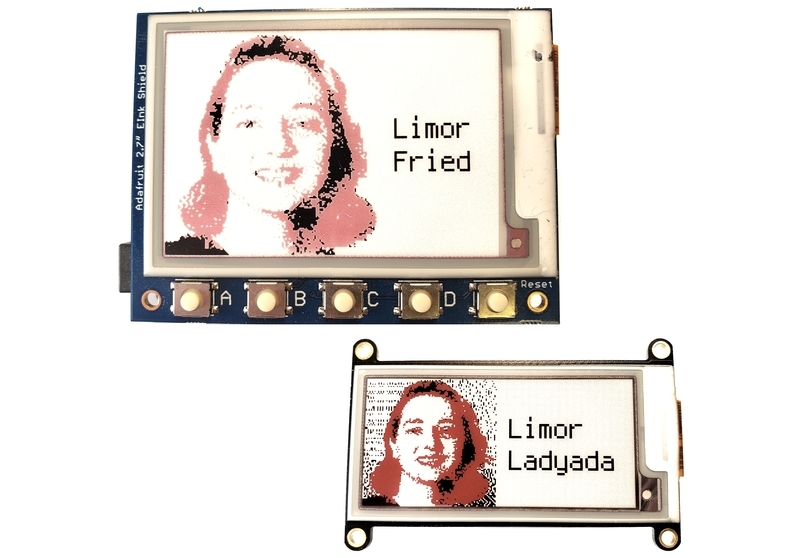
最后一个示例在eInk显示器上的位图上显示文本,从而使名称徽章对于聚会或会议非常有用。
图像
此示例使用BMP格式的方形图片文件显示在显示屏的左侧。可能是某人的图片,徽标或其他艺术品。
要使用高度为104像素的2.13“显示器,请将图像设为104x104。
要使用2.7”显示屏的高度为176像素,使图像的尺寸为176x176。
由于eInk显示屏只能使用3种颜色,因此请参阅随附的指南“为E-Ink显示屏准备图形”。查看它们可能如何在您选择的显示器上最佳显示。
以下是示例中使用的示例图片。对于2.13英寸显示屏,请使用较小的图片;对于2.7英寸屏蔽板,请使用较大的图片。将图像作为 picture.bmp 复制到开发板的 CIRCUITPY 驱动器。


代码
下面的代码将在左侧显示一个正方形图片,使用internal terminalio字体在eInk显示屏的右侧放置两行文本。您可以设置前景色和背景色。请参阅注释以了解每个步骤如何对过程作出贡献。
请选择特定于显示器和微控制器的代码,因为以下两个代码块对于两组硬件均不可互换。这些示例几乎是相同的。
“ 2.13”显示效果更真实红色,而2.7英寸显示屏则使用更多的粉红色。这完全取决于显示器的制造方式,而不取决于显示器本身的颜色问题。请将此因素纳入您的颜色选择计划中。
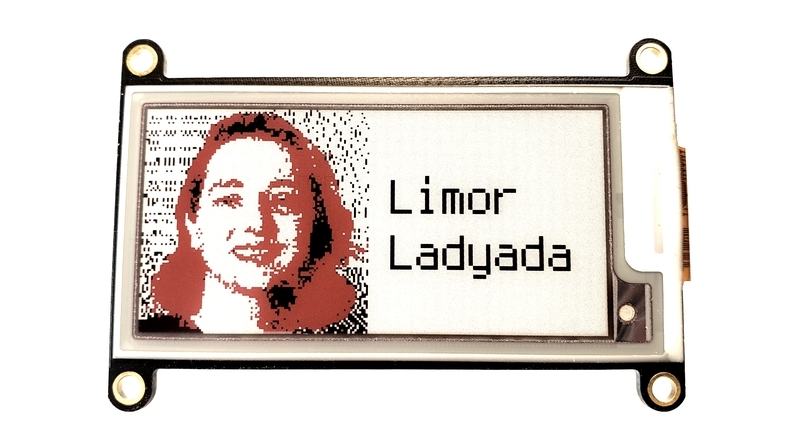
2.13“ eInk FeatherWing示例
引脚反映了FeatherWing eInk显示器和Feather M4的组合。它还具有2.13英寸显示器的像素尺寸。
下载:Project Zip 或 213_tricolor_eink_fw_badge.py | 在Github上查看
复制代码
“”“
Simple badge script for Adafruit 2.13” 212x104 tri-color display
Supported products:
* Adafruit 2.13“ Tri-Color Display Breakout
* https://www.adafruit.com/product/4086 (breakout) or
* https://www.adafruit.com/product/4128 (FeatherWing)
This program requires the adafruit_il0373 library and the
adafruit_display_text library in the CIRCUITPY /lib folder
for CircuitPython 5.0 and above which has displayio support.
”“”
import time
import board
import displayio
import adafruit_il0373
import terminalio
from adafruit_display_text import label
BLACK = 0x000000
WHITE = 0xFFFFFF
RED = 0xFF0000
# Change text colors, choose from the following values:
# BLACK, RED, WHITE
TEXT_COLOR = BLACK
BACKGROUND_COLOR = WHITE
# Used to ensure the display is free in CircuitPython
displayio.release_displays()
# Define the pins needed for display use
# This pinout is for a Feather M4 and may be different for other boards
spi = board.SPI() # Uses SCK and MOSI
epd_cs = board.D9
epd_dc = board.D10
epd_reset = board.D5
epd_busy = board.D6
# Create the displayio connection to the display pins
display_bus = displayio.FourWire(spi, command=epd_dc, chip_select=epd_cs,
reset=epd_reset, baudrate=1000000)
time.sleep(1) # Wait a bit
DISPLAY_WIDTH = 212
DISPLAY_HEIGHT = 104
# Create the display object - the third color is red (0xff0000)
display = adafruit_il0373.IL0373(display_bus, width=DISPLAY_WIDTH,
height=DISPLAY_HEIGHT,
rotation=90, busy_pin=epd_busy,
highlight_color=0xff0000)
# Create a display group for our screen objects
g = displayio.Group()
# Set a background
background_bitmap = displayio.Bitmap(DISPLAY_WIDTH, DISPLAY_HEIGHT, 1)
# Map colors in a palette
palette = displayio.Palette(1)
palette[0] = BACKGROUND_COLOR
# Put the background into the display group
bg_sprite = displayio.TileGrid(background_bitmap,
pixel_shader=palette,
x=0, y=0)
g.append(bg_sprite)
# Display a picture from the root directory of the CIRCUITPY drive
# Picture should be HEIGHTxHEIGHT square idealy for a portrait
# But could be the entire WIDTHxHEIGHT for a non-portrait
f = open(“/picture.bmp”, “rb”)
pic = displayio.OnDiskBitmap(f)
# Create a Tilegrid with the bitmap and put in the displayio group
t = displayio.TileGrid(pic, pixel_shader=displayio.ColorConverter())
g.append(t)
# Draw simple text using the built-in font into a displayio group
# For smaller text, change scale=2 to scale=1
text_group = displayio.Group(max_size=10, scale=2,
x=DISPLAY_HEIGHT + 10,
y=int(DISPLAY_HEIGHT/2) - 13)
first_name = “Limor”
text_area = label.Label(terminalio.FONT, text=first_name,
color=TEXT_COLOR)
text_group.append(text_area) # Add this text to the text group
g.append(text_group)
# Draw simple text using the built-in font into a displayio group
text_group = displayio.Group(max_size=10, scale=2,
x=DISPLAY_HEIGHT + 10,
y=int(DISPLAY_HEIGHT/2) + 13)
last_name = “Ladyada”
text_area = label.Label(terminalio.FONT, text=last_name,
color=TEXT_COLOR)
text_group.append(text_area) # Add this text to the text group
g.append(text_group)
# Place the display group on the screen
display.show(g)
# Refresh the display to have it actually show
# NOTE: Do not refresh eInk displays more often than 180 seconds!
display.refresh()
# Wait the minimum 3 minutes between refreshes. Then loop to freeze.
time.sleep(180)
while True:
pass
“”“
Simple badge script for Adafruit 2.13” 212x104 tri-color display
Supported products:
* Adafruit 2.13“ Tri-Color Display Breakout
* https://www.adafruit.com/product/4086 (breakout) or
* https://www.adafruit.com/product/4128 (FeatherWing)
This program requires the adafruit_il0373 library and the
adafruit_display_text library in the CIRCUITPY /lib folder
for CircuitPython 5.0 and above which has displayio support.
”“”
import time
import board
import displayio
import adafruit_il0373
import terminalio
from adafruit_display_text import label
BLACK = 0x000000
WHITE = 0xFFFFFF
RED = 0xFF0000
# Change text colors, choose from the following values:
# BLACK, RED, WHITE
TEXT_COLOR = BLACK
BACKGROUND_COLOR = WHITE
# Used to ensure the display is free in CircuitPython
displayio.release_displays()
# Define the pins needed for display use
# This pinout is for a Feather M4 and may be different for other boards
spi = board.SPI() # Uses SCK and MOSI
epd_cs = board.D9
epd_dc = board.D10
epd_reset = board.D5
epd_busy = board.D6
# Create the displayio connection to the display pins
display_bus = displayio.FourWire(spi, command=epd_dc, chip_select=epd_cs,
reset=epd_reset, baudrate=1000000)
time.sleep(1) # Wait a bit
DISPLAY_WIDTH = 212
DISPLAY_HEIGHT = 104
# Create the display object - the third color is red (0xff0000)
display = adafruit_il0373.IL0373(display_bus, width=DISPLAY_WIDTH,
height=DISPLAY_HEIGHT,
rotation=90, busy_pin=epd_busy,
highlight_color=0xff0000)
# Create a display group for our screen objects
g = displayio.Group()
# Set a background
background_bitmap = displayio.Bitmap(DISPLAY_WIDTH, DISPLAY_HEIGHT, 1)
# Map colors in a palette
palette = displayio.Palette(1)
palette[0] = BACKGROUND_COLOR
# Put the background into the display group
bg_sprite = displayio.TileGrid(background_bitmap,
pixel_shader=palette,
x=0, y=0)
g.append(bg_sprite)
# Display a picture from the root directory of the CIRCUITPY drive
# Picture should be HEIGHTxHEIGHT square idealy for a portrait
# But could be the entire WIDTHxHEIGHT for a non-portrait
f = open(“/picture.bmp”, “rb”)
pic = displayio.OnDiskBitmap(f)
# Create a Tilegrid with the bitmap and put in the displayio group
t = displayio.TileGrid(pic, pixel_shader=displayio.ColorConverter())
g.append(t)
# Draw simple text using the built-in font into a displayio group
# For smaller text, change scale=2 to scale=1
text_group = displayio.Group(max_size=10, scale=2,
x=DISPLAY_HEIGHT + 10,
y=int(DISPLAY_HEIGHT/2) - 13)
first_name = “Limor”
text_area = label.Label(terminalio.FONT, text=first_name,
color=TEXT_COLOR)
text_group.append(text_area) # Add this text to the text group
g.append(text_group)
# Draw simple text using the built-in font into a displayio group
text_group = displayio.Group(max_size=10, scale=2,
x=DISPLAY_HEIGHT + 10,
y=int(DISPLAY_HEIGHT/2) + 13)
last_name = “Ladyada”
text_area = label.Label(terminalio.FONT, text=last_name,
color=TEXT_COLOR)
text_group.append(text_area) # Add this text to the text group
g.append(text_group)
# Place the display group on the screen
display.show(g)
# Refresh the display to have it actually show
# NOTE: Do not refresh eInk displays more often than 180 seconds!
display.refresh()
# Wait the minimum 3 minutes between refreshes. Then loop to freeze.
time.sleep(180)
while True:
pass
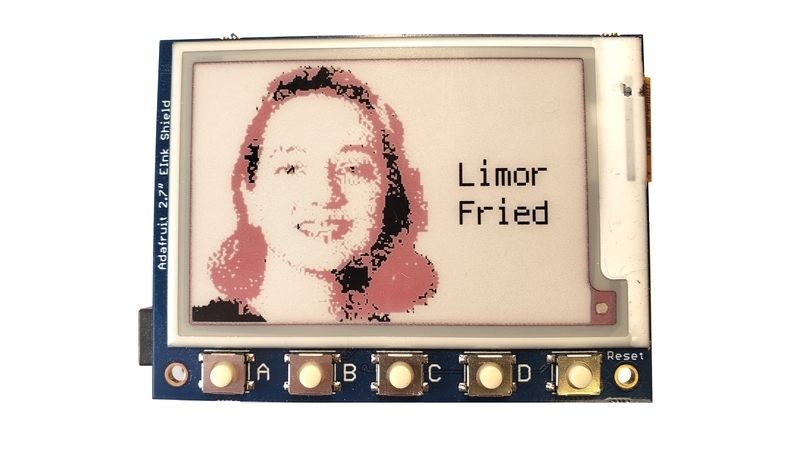
div》 2.7“ eInk Shield示例
引脚反映了屏蔽eInk显示屏和Metro M4的组合。它具有2.7”显示屏的像素尺寸。
下载:Project Zip 或 27 _tricolor_eink_shield_badge.py | 在Github上查看
复制代码
“”“
Simple Badge script for a 2.7” 264x176 Tri-Color eInk display shield
Supported products:
* Adafruit 2.7“ Tri-Color ePaper Display Shield
https://www.adafruit.com/product/4229
This program requires the adafruit_il91874 and the
adafruit_display_text library in /lib on the CIRCUITPY drive
for CircuitPython 5.0 and above which has displayio support.
”“”
import time
import board
import displayio
import adafruit_il91874
import terminalio
from adafruit_display_text import label
BLACK = 0x000000
WHITE = 0xFFFFFF
RED = 0xFF0000
# Change text colors, choose from the following values:
# BLACK, RED, WHITE
TEXT_COLOR = BLACK
BACKGROUND_COLOR = WHITE
# Used to ensure the display is free in CircuitPython
displayio.release_displays()
# Define the pins needed for display use on the Metro
spi = board.SPI()
epd_cs = board.D10
epd_dc = board.D9
# Create the displayio connection to the display pins
display_bus = displayio.FourWire(spi, command=epd_dc, chip_select=epd_cs,
baudrate=1000000)
time.sleep(1) # Wait a bit
DISPLAY_WIDTH = 264
DISPLAY_HEIGHT = 176
# Create the display object - the third color is red (0xff0000)
display = adafruit_il91874.IL91874(display_bus, width=DISPLAY_WIDTH,
height=DISPLAY_HEIGHT,
highlight_color=0xff0000, rotation=90)
# Create a display group for our screen objects
g = displayio.Group(max_size=10)
# Set a background
background_bitmap = displayio.Bitmap(DISPLAY_WIDTH, DISPLAY_HEIGHT, 1)
# Map colors in a palette
palette = displayio.Palette(1)
palette[0] = BACKGROUND_COLOR
# Put the background into the display group
bg_sprite = displayio.TileGrid(background_bitmap,
pixel_shader=palette,
x=0, y=0)
g.append(bg_sprite)
# Display a picture from the root directory of the CIRCUITPY drive
# Picture should be HEIGHTxHEIGHT square idealy for a portrait
# But could be the entire WIDTHxHEIGHT for a non-portrait
f = open(“/picture.bmp”, “rb”)
pic = displayio.OnDiskBitmap(f)
# Create a Tilegrid with the bitmap and put in the displayio group
t = displayio.TileGrid(pic, pixel_shader=displayio.ColorConverter())
g.append(t)
# Draw simple text using the built-in font into a displayio group
# For smaller text, change scale=2 to scale=1 as scale 2 doesn‘t
# allow for much text but the text is bigger.
text_group = displayio.Group(max_size=10, scale=2,
x=DISPLAY_HEIGHT + 5,
y=int(DISPLAY_HEIGHT/2) - 13)
first_name = “Limor”
text_area = label.Label(terminalio.FONT, text=first_name,
color=TEXT_COLOR)
text_group.append(text_area) # Add this text to the text group
g.append(text_group)
# Draw simple text using the built-in font into a displayio group
# For smaller text, change scale=2 to scale=1 as scale 2 doesn’t
# allow for much text but the text is bigger.
text_group = displayio.Group(max_size=10, scale=2,
x=DISPLAY_HEIGHT + 5,
y=int(DISPLAY_HEIGHT/2) + 13)
last_name = “Fried”
text_area = label.Label(terminalio.FONT, text=last_name,
color=TEXT_COLOR)
text_group.append(text_area) # Add this text to the text group
g.append(text_group)
# Place the display group on the screen
display.show(g)
# Refresh the display to have it actually show
# NOTE: Do not refresh eInk displays more often than 180 seconds!
display.refresh()
# Wait the minimum 3 minutes between refreshes. Then loop to freeze.
time.sleep(180)
while True:
pass
“”“
Simple Badge script for a 2.7” 264x176 Tri-Color eInk display shield
Supported products:
* Adafruit 2.7“ Tri-Color ePaper Display Shield
https://www.adafruit.com/product/4229
This program requires the adafruit_il91874 and the
adafruit_display_text library in /lib on the CIRCUITPY drive
for CircuitPython 5.0 and above which has displayio support.
”“”
import time
import board
import displayio
import adafruit_il91874
import terminalio
from adafruit_display_text import label
BLACK = 0x000000
WHITE = 0xFFFFFF
RED = 0xFF0000
# Change text colors, choose from the following values:
# BLACK, RED, WHITE
TEXT_COLOR = BLACK
BACKGROUND_COLOR = WHITE
# Used to ensure the display is free in CircuitPython
displayio.release_displays()
# Define the pins needed for display use on the Metro
spi = board.SPI()
epd_cs = board.D10
epd_dc = board.D9
# Create the displayio connection to the display pins
display_bus = displayio.FourWire(spi, command=epd_dc, chip_select=epd_cs,
baudrate=1000000)
time.sleep(1) # Wait a bit
DISPLAY_WIDTH = 264
DISPLAY_HEIGHT = 176
# Create the display object - the third color is red (0xff0000)
display = adafruit_il91874.IL91874(display_bus, width=DISPLAY_WIDTH,
height=DISPLAY_HEIGHT,
highlight_color=0xff0000, rotation=90)
# Create a display group for our screen objects
g = displayio.Group(max_size=10)
# Set a background
background_bitmap = displayio.Bitmap(DISPLAY_WIDTH, DISPLAY_HEIGHT, 1)
# Map colors in a palette
palette = displayio.Palette(1)
palette[0] = BACKGROUND_COLOR
# Put the background into the display group
bg_sprite = displayio.TileGrid(background_bitmap,
pixel_shader=palette,
x=0, y=0)
g.append(bg_sprite)
# Display a picture from the root directory of the CIRCUITPY drive
# Picture should be HEIGHTxHEIGHT square idealy for a portrait
# But could be the entire WIDTHxHEIGHT for a non-portrait
f = open(“/picture.bmp”, “rb”)
pic = displayio.OnDiskBitmap(f)
# Create a Tilegrid with the bitmap and put in the displayio group
t = displayio.TileGrid(pic, pixel_shader=displayio.ColorConverter())
g.append(t)
# Draw simple text using the built-in font into a displayio group
# For smaller text, change scale=2 to scale=1 as scale 2 doesn‘t
# allow for much text but the text is bigger.
text_group = displayio.Group(max_size=10, scale=2,
x=DISPLAY_HEIGHT + 5,
y=int(DISPLAY_HEIGHT/2) - 13)
first_name = “Limor”
text_area = label.Label(terminalio.FONT, text=first_name,
color=TEXT_COLOR)
text_group.append(text_area) # Add this text to the text group
g.append(text_group)
# Draw simple text using the built-in font into a displayio group
# For smaller text, change scale=2 to scale=1 as scale 2 doesn’t
# allow for much text but the text is bigger.
text_group = displayio.Group(max_size=10, scale=2,
x=DISPLAY_HEIGHT + 5,
y=int(DISPLAY_HEIGHT/2) + 13)
last_name = “Fried”
text_area = label.Label(terminalio.FONT, text=last_name,
color=TEXT_COLOR)
text_group.append(text_area) # Add this text to the text group
g.append(text_group)
# Place the display group on the screen
display.show(g)
# Refresh the display to have it actually show
# NOTE: Do not refresh eInk displays more often than 180 seconds!
display.refresh()
# Wait the minimum 3 minutes between refreshes. Then loop to freeze.
time.sleep(180)
while True:
pass
代码查看
对于概述将displayio用于CircuitPython的显示,这是出色的指南,使用displayio的CircuitPython显示支持是您的第一站。如果您想更深入地了解用于显示器的模型,请参阅本指南。
Adafruit建议在尝试执行其他代码以确保显示器连接到显示器之前,使用 displayio.release_displays()函数。
下一步是让displayio知道显示器上使用了哪些引脚。所使用的特定引脚在很大程度上取决于显示器,建议您在寻求更改之前,先参考显示器上的指南以了解已知的工作配置。 displayio.FourWire设置与显示总线的displayio连接。
定义了显示尺寸(特定于显示器)。然后在总线上,程序建立与显示驱动程序的连接。给出了显示的大小(width和height),方向(rotation),忙碌引脚和突出显示颜色。对于此三色显示,指定了红色(0xff0000)。
其余代码与后两个示例非常相似。首先,从 CIRCUITPY 驱动器的根目录中读取一个名为 picture.bmp 的位图图形。通过displayio.TileGrid在显示组中设置图形。然后定义两行文本。它们被放置在位图的右边几个像素处,并与显示高度的中间等距。
此庄园中容纳的文字很少。您可以通过两种方法来获得更大的文本宽度:
将scale=2更改为scale=1将使每行字符更多,但文本将更小。
如果需要最终的灵活性,建议您将所有设计元素创建到一个位图图片中,并使用第一个示例仅显示位图。
该程序将所有组放置屏幕上具有display.show的元素将刷新display.refresh的显示,以实际显示图形。 eInk显示器需要2-3秒钟才能删除上一张图像并显示新图像。
最后,程序将等待3分钟。 while True:和pass 循环位于程序的末尾,因此REPL不会擦除标志图像。按下重置按钮将再次启动程序。
深入
本指南是对在使用CircuitPython和displayio库的三色eInk显示器上使用位图图形和文本的介绍。
其他《 Adafruit学习系统指南》提供了制作不同屏幕元素的更多示例。有关更多信息,请参考以下指南:
Adafruit eInk显示器突破点
为电子墨水显示器准备图形 p》
使用displayio
支持CircuitPython显示对于更多高级名称标签,您可以考虑将Adafruit PyBadge与TFT LCD显示器一起使用
带有Unicode字体的PyBadge会议徽章
责任编辑:wv
-
显示屏
+关注
关注
30文章
4724浏览量
79945
发布评论请先 登录
碳纤维led显示屏优势
InfoVue™ 105°C LCD 显示屏:极端条件下的理想之选
Adafruit Mini TFT - 0.96" 160x80 硬件设计开发全解析
Adafruit TFP401 HDMI/DVI解码器:驱动40针TTL显示屏的理想之选
探索Adafruit 2.8"和3.2"彩色TFT触摸屏开发板v2:功能、使用与调试
DLC0500HZG - 8显示屏的设计与特性解析
eink墨水屏高效开发秘籍:开源库与演示系统全揭秘
开源!eink墨水屏库+演示系统,高效开发必看
LED显示屏常见故障分类及处理方法
基于RK3568开发板显示屏调试适配方法(1)-如何在Uboot界面切换显示屏

液晶显示屏出厂要做哪些安全检测




评论