


 10 个增加 UNIX/Linux Shell 脚本趣味的工具

有些误解认为 shell 脚本仅用于 CLI 环境。实际上在 KDE 或 Gnome 桌面下,你可以有效的使用各种工具编写 GUI 或者网络(socket)脚本。shell 脚本可以使用一些 GUI 组件(菜单、警告框、进度条等),你可以控制终端输出、光标位置以及各种输出效果等等。利用下面的工具,你可以构建强壮的、可交互的、对用户友好的 UNIX/Linux bash 脚本。
制作 GUI 应用不是一项困难的任务,但需要时间和耐心。幸运的是,UNIX 和 Linux 都带有大量编写漂亮 GUI 脚本的工具。以下工具是基于 FreeBSD 和 Linux 操作系统做的测试,而且也适用于其他类 UNIX 操作系统。
1、notify-send 命令
notify-send 命令允许你借助通知守护进程发送桌面通知给用户。这种避免打扰用户的方式,对于通知桌面用户一个事件或显示一些信息是有用的。在 Debian 或 Ubuntu 上,你需要使用 apt 命令 或 apt-get 命令 安装的包:
sudo apt-get install libnotify-bin
CentOS/RHEL 用户使用下面的 yum 命令:
sudo yum install libnotify
Fedora Linux 用户使用下面的 dnf 命令:
`$ sudo dnf install libnotify`
In this example, send simple desktop notification from the command line, enter:
### 发送一些通知 ###
notify-send "rsnapshot done :)"
示例输出:
notify-send: Shell Script Get Or Send Desktop Notifications
下面是另一个附加选项的代码:
...
alert=18000
live=$(lynx --dump http://money.rediff.com/ | grep 'BSE LIVE' | awk '{ print $5}' | sed 's/,//g;s/.[0-9]*//g')
[ $notify_counter -eq 0 ] && [ $live -ge $alert ] && { notify-send -t 5000 -u low -i "BSE Sensex touched 18k"; notify_counter=1; }
...
示例输出:
Linux / UNIX: Display Notifications From Your Shell Scripts With notify-send
这里:
-t 5000:指定超时时间(毫秒) (5000 毫秒 = 5 秒)
-u low: 设置紧急等级 (如:低、普通、紧急)
-i gtk-dialog-info: 设置要显示的图标名称或者指定的图标(你可以设置路径为:-i /path/to/your-icon.png)
关于更多使用notify-send功能的信息,请参考 man 手册。在命令行下输入man notify-send即可看见:
man notify-send
2、tput 命令
tput命令用于设置终端特性。通过tput你可以设置:
在屏幕上移动光标。
获取终端信息。
设置颜色(背景和前景)。
设置加粗模式。
设置反转模式等等。
下面有一段示例代码:
#!/bin/bash
# clear the screen
tput clear
# Move cursor to screen location X,Y (top left is 0,0)
tput cup 3 15
# Set a foreground colour using ANSI escape
tput setaf 3
echo "XYX Corp LTD."
tput sgr0
tput cup 5 17
# Set reverse video mode
tput rev
echo "M A I N - M E N U"
tput sgr0
tput cup 7 15
echo "1. User Management"
tput cup 8 15
echo "2. Service Management"
tput cup 9 15
echo "3. Process Management"
tput cup 10 15
echo "4. Backup"
# Set bold mode
tput bold
tput cup 12 15
read -p "Enter your choice [1-4] " choice
tput clear
tput sgr0
tput rc
示例输出:
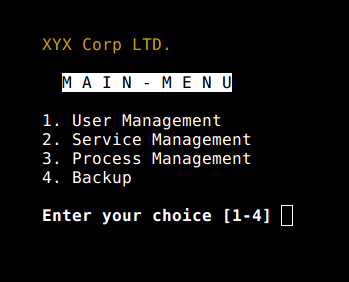
Linux / UNIX Script Colours and Cursor Movement With tput
关于tput命令的详细信息,参见手册:
man 5 terminfo
man tput
3、setleds 命令
setleds 命令允许你设置键盘灯。下面是打开数字键灯的示例:
setleds -D +num
关闭数字键灯,输入:
setleds -D -num
-caps:关闭大小写锁定灯
+caps:打开大小写锁定灯
-scroll:关闭滚动锁定灯
+scroll:打开滚动锁定灯
查看setleds手册可看见更多信息和选项man setleds。
4、zenity 命令
zenity 命令显示 GTK+ 对话框,并且返回用户输入。它允许你使用各种 Shell 脚本向用户展示或请求信息。下面是一个whois指定域名目录服务的 GUI 客户端示例。
#!/bin/bash
# Get domain name
_zenity="/usr/bin/zenity"
_out="/tmp/whois.output.$$"
domain=$(${_zenity} --title "Enter domain"
--entry --text "Enter the domain you would like to see whois info" )
if [ $? -eq 0 ]
then
# Display a progress dialog while searching whois database
whois $domain | tee >(${_zenity} --width=200 --height=100
--title="whois" --progress
--pulsate --text="Searching domain info..."
--auto-kill --auto-close
--percentage=10) >${_out}
# Display back output
${_zenity} --width=800 --height=600
--title "Whois info for $domain"
--text-info --filename="${_out}"
else
${_zenity} --error
--text="No input provided"
fi
示例输出:
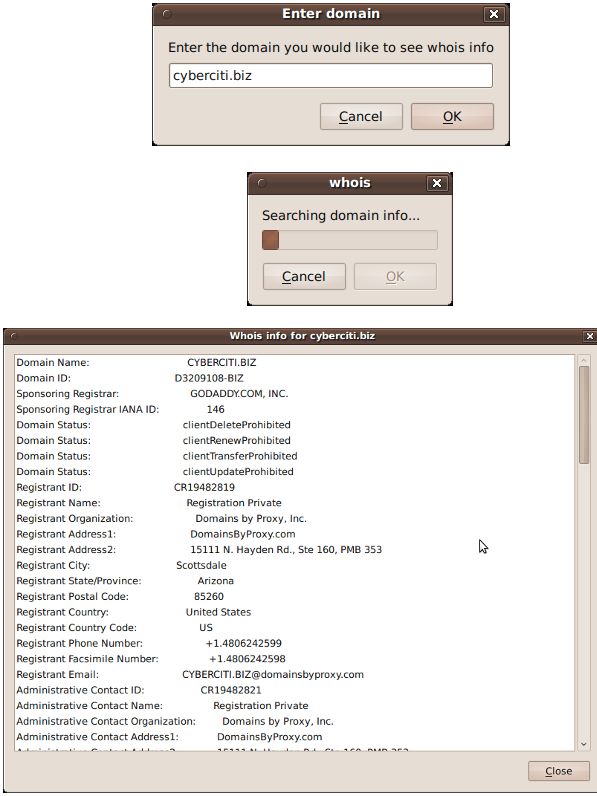
zenity: Linux / UNIX display Dialogs Boxes From The Shell Scripts
参见手册获取更多zenity信息以及其他支持 GTK+ 的组件:
zenity --help
man zenity
5、kdialog 命令
kdialog 命令与 zenity 类似,但它是为 KDE 桌面和 QT 应用设计。你可以使用 kdialog 展示对话框。下面示例将在屏幕上显示信息:
kdialog --dontagain myscript:nofilemsg --msgbox "File: '~/.backup/config' not found."
示例输出:
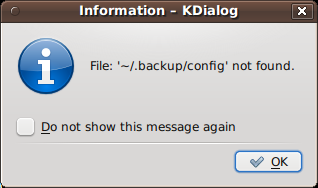
Kdialog: Suppressing the display of a dialog
6、Dialog
Dialog 是一个使用 Shell 脚本的应用,显示用户界面组件的文本。它使用 curses 或者 ncurses 库。下面是一个示例代码:
#!/bin/bash
dialog --title "Delete file"
--backtitle "Linux Shell Script Tutorial Example"
--yesno "Are you sure you want to permanently delete "/tmp/foo.txt"?" 7 60
# Get exit status
# 0 means user hit [yes] button.
# 1 means user hit [no] button.
# 255 means user hit [Esc] key.
response=$?
case $response in
0) echo "File deleted.";;
1) echo "File not deleted.";;
255) echo "[ESC] key pressed.";;
esac
参见 dialog 手册获取详细信息:man dialog。
关于其他用户界面工具的注意事项
UNIX、Linux 提供了大量其他工具来显示和控制命令行中的应用程序,shell 脚本可以使用一些 KDE、Gnome、X 组件集:
gmessage- 基于 GTK xmessage 的克隆
xmessage- 在窗口中显示或询问消息(基于 X 的 /bin/echo)
whiptail- 显示来自 shell 脚本的对话框
python-dialog- 用于制作简单文本或控制台模式用户界面的 Python 模块
7、logger 命令
logger命令将信息写到系统日志文件,如:/var/log/messages。它为系统日志模块 syslog 提供了一个 shell 命令行接口:
logger "MySQL database backup failed."
tail -f /var/log/messages
logger -t mysqld -p daemon.error "Database Server failed"
tail -f /var/log/syslog
示例输出:
Apr 20 00:11:45 vivek-desktop kernel: [38600.515354] CPU0: Temperature/speed normal
Apr 20 00:12:20 vivek-desktop mysqld: Database Server failed
可以查看 logger 手册获取详细信息:man logger
8、setterm 命令
setterm 命令可设置不同的终端属性。下面的示例代码会强制屏幕在 15 分钟后变黑,监视器则 60 分钟后待机。
setterm -blank 15 -powersave powerdown -powerdown 60
下面的例子将 xterm 窗口中的文本以下划线展示:
setterm -underline on;
echo "Add Your Important Message Here"
setterm -underline off
另一个有用的选项是打开或关闭光标显示:
setterm -cursor off
打开光标:
setterm -cursor on
参见 setterm 命令手册获取详细信息:man setterm
9、smbclient:给 MS-Windows 工作站发送消息
smbclient 命令可以与 SMB/CIFS 服务器通讯。它可以向 MS-Windows 系统上选定或全部用户发送消息。
smbclient -M WinXPPro <
Message 1
Message 2
...
..
EOF
或
echo "${Message}" | smbclient -M salesguy2
参见 smbclient 手册:man smbclient
10、Bash 套接字编程
在 bash 下,你可以打开一个套接字并通过它发送数据。你不必使用curl或者lynx命令抓取远程服务器的数据。bash 和两个特殊的设备文件可用于打开网络套接字。以下选自 bash 手册:
/dev/tcp/host/port- 如果host是一个有效的主机名或者网络地址,而且端口是一个整数或者服务名,bash 会尝试打开一个相应的 TCP 连接套接字。
/dev/udp/host/port- 如果host是一个有效的主机名或者网络地址,而且端口是一个整数或者服务名,bash 会尝试打开一个相应的 UDP 连接套接字。
你可以使用这项技术来确定本地或远程服务器端口是打开或者关闭状态,而无需使用nmap或者其它的端口扫描器。
# find out if TCP port 25 open or not
(echo >/dev/tcp/localhost/25) &>/dev/null && echo "TCP port 25 open" || echo "TCP port 25 close"
下面的代码片段,你可以利用 bash 循环找出已打开的端口:
echo "Scanning TCP ports..."
for p in {1..1023}
do
(echo >/dev/tcp/localhost/$p) >/dev/null 2>&1 && echo "$p open"
done
示例输出:
Scanning TCP ports...
22 open
53 open
80 open
139 open
445 open
631 open
下面的示例中,你的 bash 脚本将像 HTTP 客户端一样工作:
#!/bin/bash
exec 3<> /dev/tcp/${1:-www.cyberciti.biz}/80
printf "GET / HTTP/1.0
" >&3
printf "Accept: text/html, text/plain
" >&3
printf "Accept-Language: en
" >&3
printf "User-Agent: nixCraft_BashScript v.%s
" "${BASH_VERSION}" >&3
printf "
" >&3
while read LINE <&3
do
# do something on $LINE
# or send $LINE to grep or awk for grabbing data
# or simply display back data with echo command
echo $LINE
done
参见 bash 手册获取更多信息:man bash
关于 GUI 工具和 cron 任务的注意事项
如果你 使用 crontab 来启动你的脚本,你需要使用 export DISPLAY=[用户机器]:0 命令请求本地显示或输出服务。举个例子,使用 zenity 工具调用/home/vivek/scripts/monitor.stock.sh:
@hourly DISPLAY=:0.0 /home/vivek/scripts/monitor.stock.sh
你有喜欢的可以增加 shell 脚本趣味的 UNIX 工具么?请在下面的评论区分享它吧。
-
Linux
+关注
关注
88文章
11868浏览量
219904 -
GUI
+关注
关注
3文章
699浏览量
44035
原文标题:10 个增加 UNIX/Linux Shell 脚本趣味的工具
文章出处:【微信号:LinuxHub,微信公众号:Linux爱好者】欢迎添加关注!文章转载请注明出处。
发布评论请先 登录
100个Linux Shell脚本总结
linux shell命令/unix shell命令教程
如何创建和执行一个简单的Linux shell脚本
Linux Shell脚本经典案例分享
如何利用shell进行脚本程序的设计?
Shell脚本检查工具ShellCheck介绍
Linux从零到精通:最简单的Shell脚本入门教程



评论